
Introducing PHP Safe Updates: change PHP without betting the site on it
Changing a site's PHP version is usually a non-event. Then one day an old plugin calls a function the new version has removed, and every page answers with "There has been a critical error on this website." If a cache is still serving the homepage, the site can look fine to you while every other page is broken.
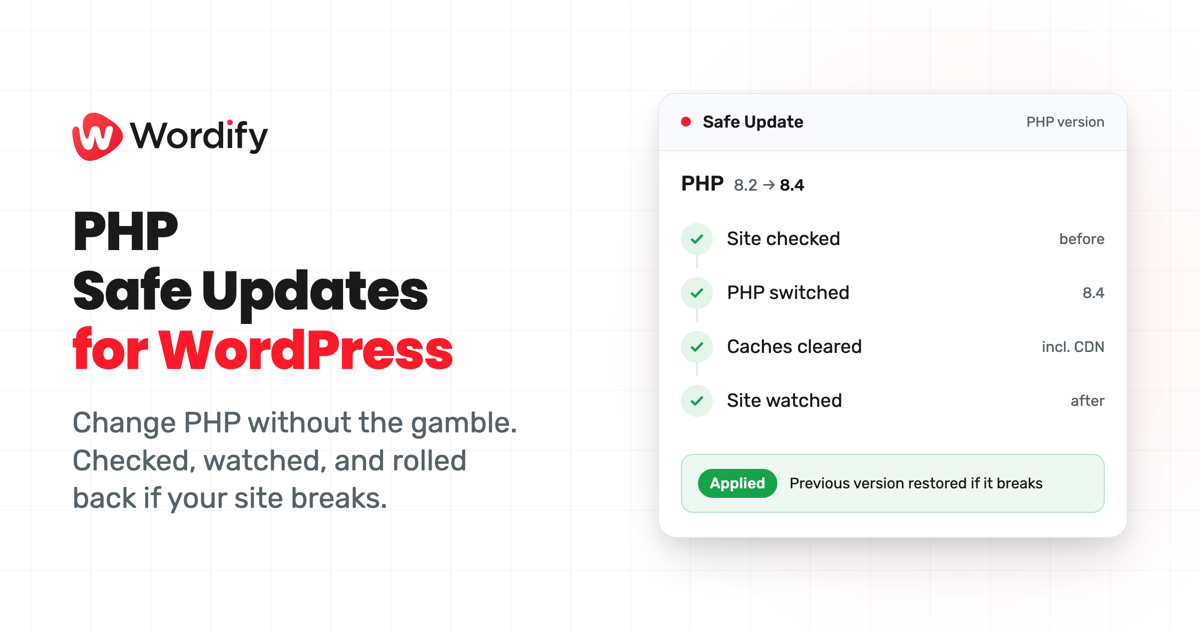
Introducing PHP Safe Updates. When you change a site's PHP version on Wordify, we check the site first, make the switch, clear the caches, and keep watching. If the new version breaks the site, we put the previous version back automatically and email you what happened, including, for most sites, the error WordPress reported. The check and rollback have run on every PHP change in the Console since early September, and the error capture is new this month. All of it is included on every plan.
Why now
PHP 8.2 stops getting security fixes on 31 December 2026, according to the PHP project's support schedule. PHP 8.1 already reached that point a year earlier. If any of your sites are on 8.2 or older, a PHP change is on your list for the next few months.
What happens when you change PHP
- Check. We make sure the site is loading normally before anything changes.
- Switch. We move the site to the new PHP version.
- Clear caches. Your page cache plugin, the WordPress object cache, SmartCache, and the CDN, so nothing stale hides a problem.
- Watch. We keep checking the site for a minute or two. An error page, a blank page, or no answer counts as broken.
While it runs, the PHP page shows the progress, and the full record stays on your Tasks page.
If the new version breaks your site
We switch back to the version you were on, clear the caches again, and check that the site has recovered. Then you get an email and an in-app notification saying what happened.
For most sites, the email now includes the error WordPress reported. If your site already keeps an error log, we read it. If debugging is switched off, we turn the error log on for the few minutes the change takes, keep errors hidden from visitors, and put wp-config.php back exactly as it was. Sites with any other debug setup are left untouched. The error usually points to the plugin or theme that isn't ready for the new version, so you know what to update before you try again.
Some failures happen before WordPress loads, such as the server not answering at all. There's no WordPress error to show for those, so the email describes what we saw instead.
We don't roll back on a guess. A single failed check that looks like a momentary server reload gets a second look a few seconds later. And if a firewall or similar blocks our check, the change stays in place and we ask you to look at the site yourself.
Wherever you change PHP
The same check and rollback apply in the Console, through the Wordify API, when you ask your AI assistant to change PHP, and on the Update PHP Version bulk action. Bulk changes always run safely and switch one site per server at a time.
How to use it
- Open the site, then under Hosting select PHP.
- Choose the new version and click Save.
- Confirm in the dialog. Safe Update is on by default.
Moving a portfolio? On the Sites list, tick the sites, open Actions, and choose Update PHP Version.
Turn Safe Update off only if your site is already showing an error and you're changing PHP to fix it. In that case there's no healthy version to compare against, so we'll ask you to.
The help article covers every step and what each outcome means. Our support team is there 24/7 if you get stuck, and new customers are covered by a 100% money-back guarantee in their first month.