
Introducing Server Cron and Cron Jobs: scheduled tasks that actually run
You schedule a post for 2pm. At 5pm you notice it's still sitting there, unpublished. Nothing was broken. No error, no plugin conflict, nothing in a log anywhere. WordPress just never got around to it.
The reason surprises most people, and it's the same reason a backup plugin skips a night or a queued email never leaves: WordPress only runs its scheduler when somebody loads your site.
Why scheduled tasks quietly miss
WordPress does a lot of work in the background. Publishing scheduled posts, sending the emails your plugins queue up, running backups, clearing caches, checking for updates. Nearly all of it goes through WordPress's own scheduler, WP-Cron.
The catch is spelled out in WordPress's own documentation: WP-Cron "is only triggered on page load". It isn't a real timer. It's a check that hitches a ride on visitor traffic, so if nobody visits, nothing runs. The WordPress docs give the example straight: schedule something for 2:00PM, get no page loads until 5:00PM, and it runs at 5:00PM.
On a busy site you'd never notice, because there's always someone along to trigger it. On a quiet site, a new site, or one that goes still overnight, tasks can sit for hours. And the failure is silent: nothing errors, nothing alerts you, the task simply waits. That's why this goes undiagnosed for so long.
There's now a Cron Jobs tab on every WordPress site in Console, under Hosting. It has three parts.
Server Cron: take the scheduler off visitor traffic
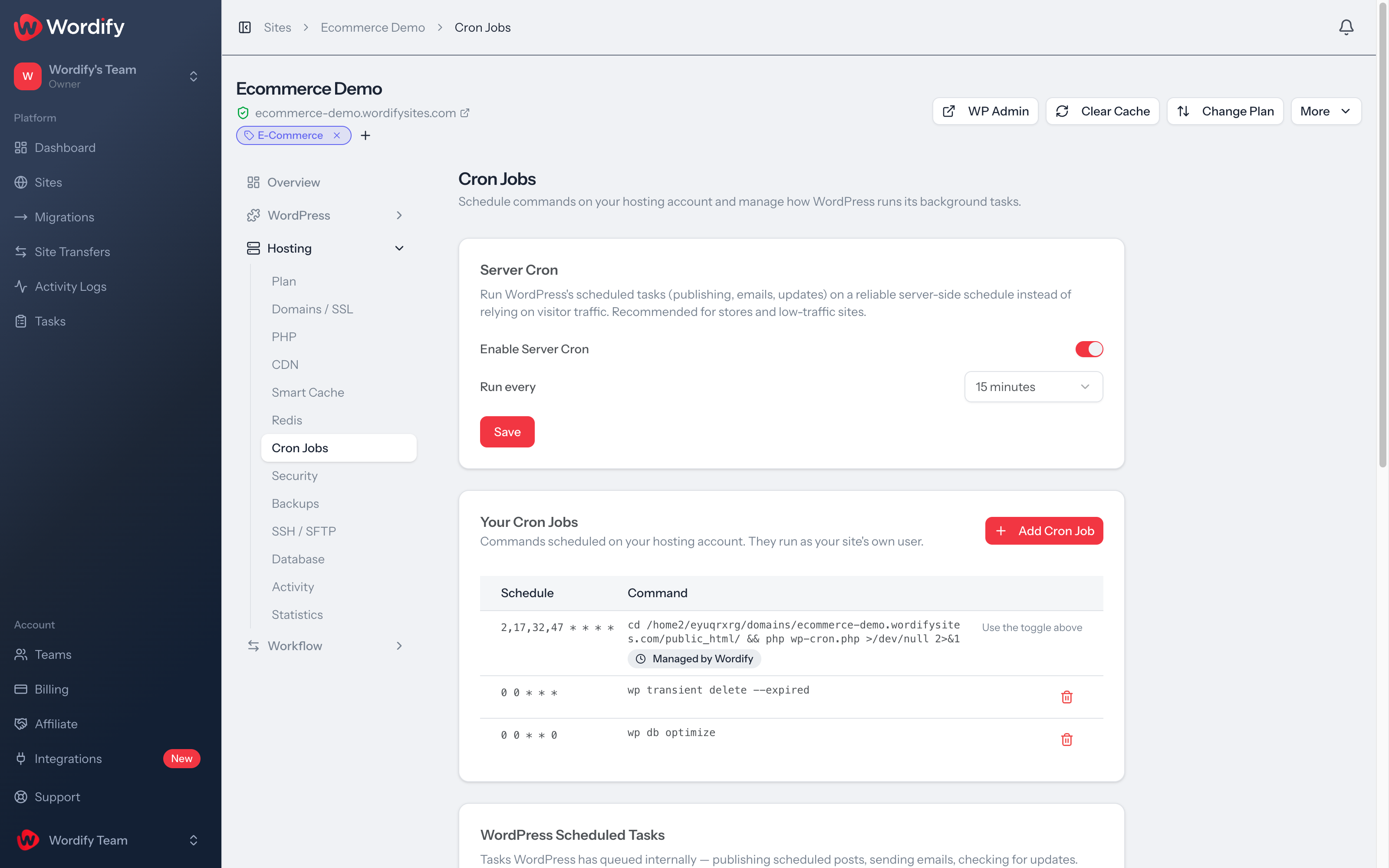
Server Cron is a single toggle. Turn it on and WordPress's scheduler stops depending on visitors and starts running from a real server-side schedule, on its own timer, whether anyone's on the site or not. Choose how often it runs: every 5, 15, or 30 minutes. The default is 15.
For most people that's the entire job. One toggle, no technical knowledge required.
If you want the specifics: we run WordPress's scheduler directly on the server at your chosen interval and switch off the visitor-triggered one. The work happens once, on schedule, rather than being checked on every single page load. So it's more reliable, because it no longer depends on your traffic, and it's lighter, because your visitors' page loads stop carrying that check. We use WordPress's proper entry point, which has an overlap lock built in, so a slow task won't get a second copy of itself piled on top while it's still running. That's a real failure mode with the improvised workarounds people usually reach for.
Custom cron jobs: your own schedules, no SSH
"Can we add our own cron jobs on our sites?" came in often enough that we got tired of the answer, which was no, or at least not without SSH. It's now built into the panel.
Add your own scheduled commands, WP-CLI or PHP scripts, and manage them from the same tab. Pick a preset (every 15 minutes, every 30 minutes, hourly, daily, or weekly) or write a custom five-field schedule if you know exactly what you're after. Console assembles the cron expression as you go and shows it to you, so you can see what you're about to save before you save it.
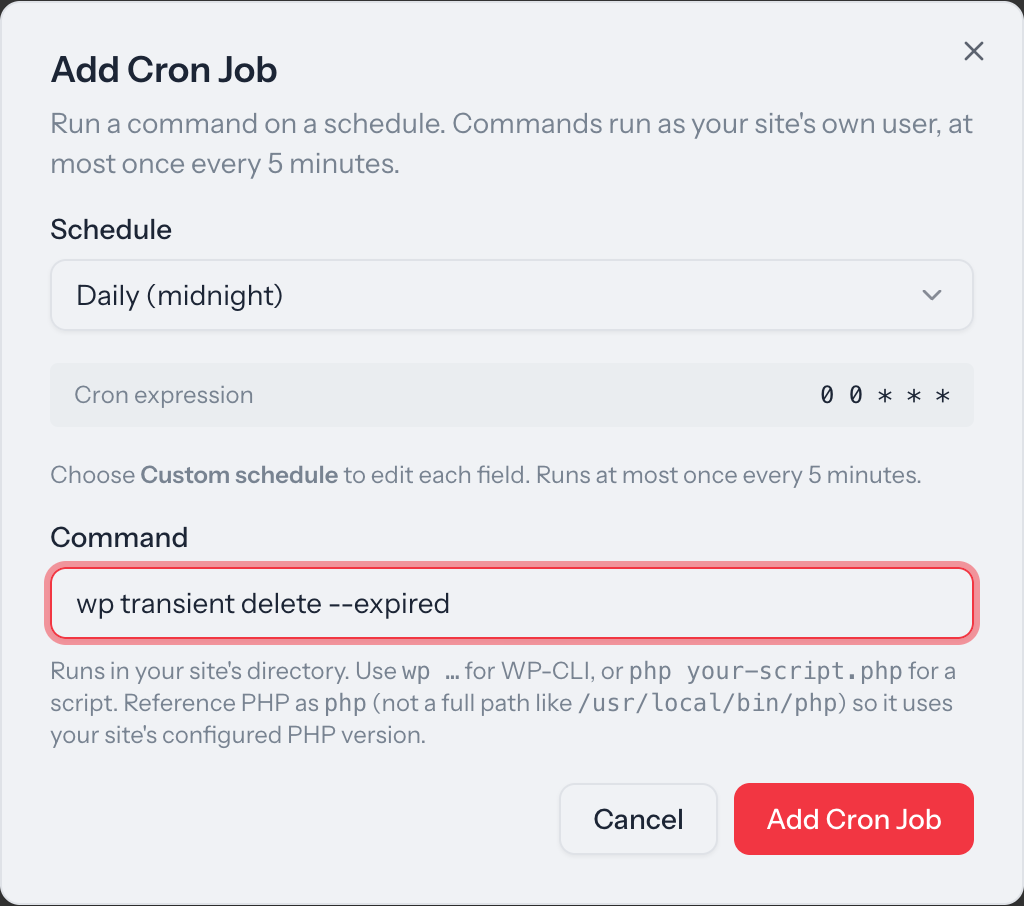
Two limits worth knowing: up to 10 of your own jobs per site, and a floor of once every 5 minutes. Your commands run as your site's own user, the same access you already have in the WP-CLI Terminal. This isn't new reach into your site, it's the same reach on a schedule.
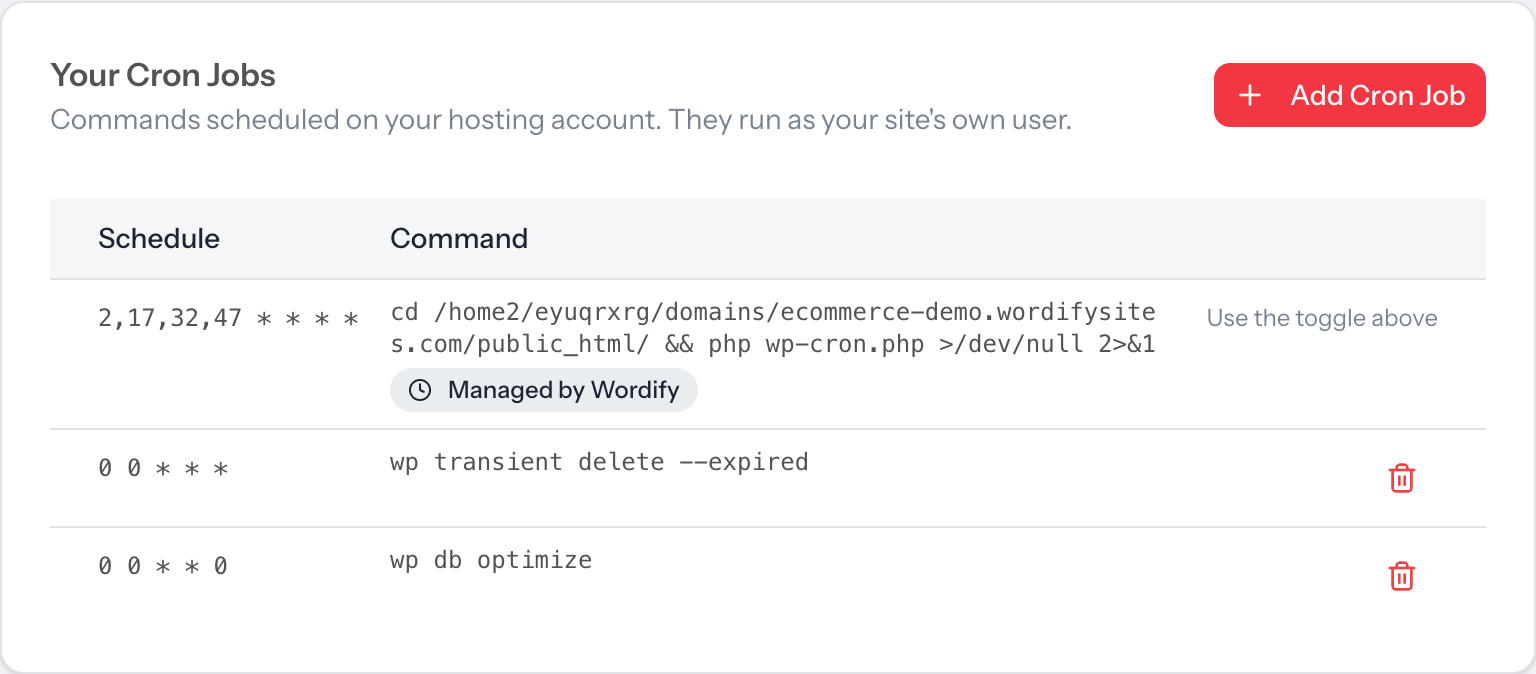
Your Server Cron entry appears in that same list, marked "Managed by Wordify", so nothing is hidden from you. It's read-only: change it with the toggle rather than by hand.
WordPress scheduled tasks: see what's actually queued
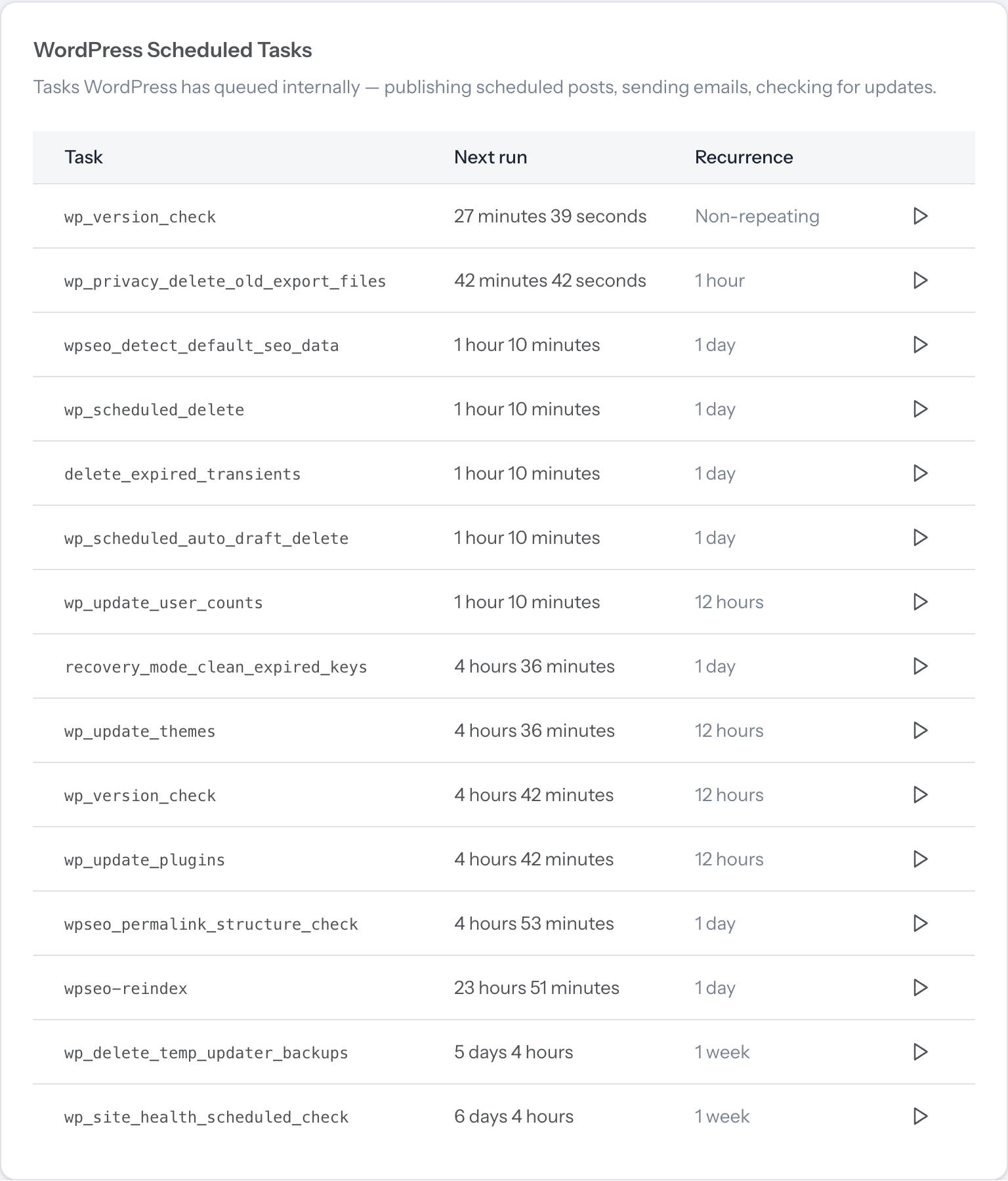
The third part is visibility, and it's where we'd point you first if something's already going wrong. You can now see every task WordPress has queued: what it is, when it's next due, and how often it repeats.
If tasks are running late, Console says so and counts them. Overdue tasks are the clearest symptom of a scheduler that isn't firing, which is the exact thing Server Cron fixes. It's the difference between "I think my backups are running" and knowing. You can also run any task on demand rather than waiting for its next window, which helps when you're testing whether a plugin's scheduled job does what you think it does.
Who this helps most
Server Cron helps any site where something has to happen at a particular time. The default gets it wrong at both ends of the traffic curve:
- Quiet sites and new sites. The less traffic you have, the less often the default scheduler fires. The sites that most need dependable scheduling are often the least able to trigger it.
- Busy sites. The opposite problem, and just as real. Because the check rides on page loads, a busy site fires it constantly: lots of visitors at once means lots of scheduler checks at once, each one its own request competing for the same resources. It's one of the first things we look at when a site is chewing through resources for no obvious reason. On a server timer it runs once per interval, however busy you get.
- Stores. Stores get it from both directions. WooCommerce runs its background work through Action Scheduler, which schedules its queue through WP-Cron, so when the scheduler stalls that work waits. And a busy store is exactly the kind of site that fires the default scheduler hardest.
- Scheduled publishing. If you write ahead and publish to a timetable, this is the difference between a post going out at 9am and going out whenever someone happens to drop by.
- Sites leaning on plugin automation. Backups, syncs, imports, and cleanup routines are scheduled tasks underneath.
- Agencies and freelancers. Turn it on per site, and use the scheduled tasks view to catch a client's stalled scheduler before the client catches it.
Where to find it
- Open Console and choose the site.
- Go to Hosting, then Cron Jobs.
- Turn on Server Cron and pick your interval.
That's it. It's on every WordPress site, on every plan, at no extra cost.
If you're not sure whether your scheduled tasks have been running, open the tab and look for overdue ones. Want the detail first? Read the help article. Questions? Just reach out, we're happy to help.