
Introducing SSH keys: one key for every site
If you look after a lot of client sites, you know the routine. A new developer starts and someone has to dig out the SFTP password for every site they'll touch. Someone leaves, and nobody's quite sure which servers still have their key in authorized_keys.
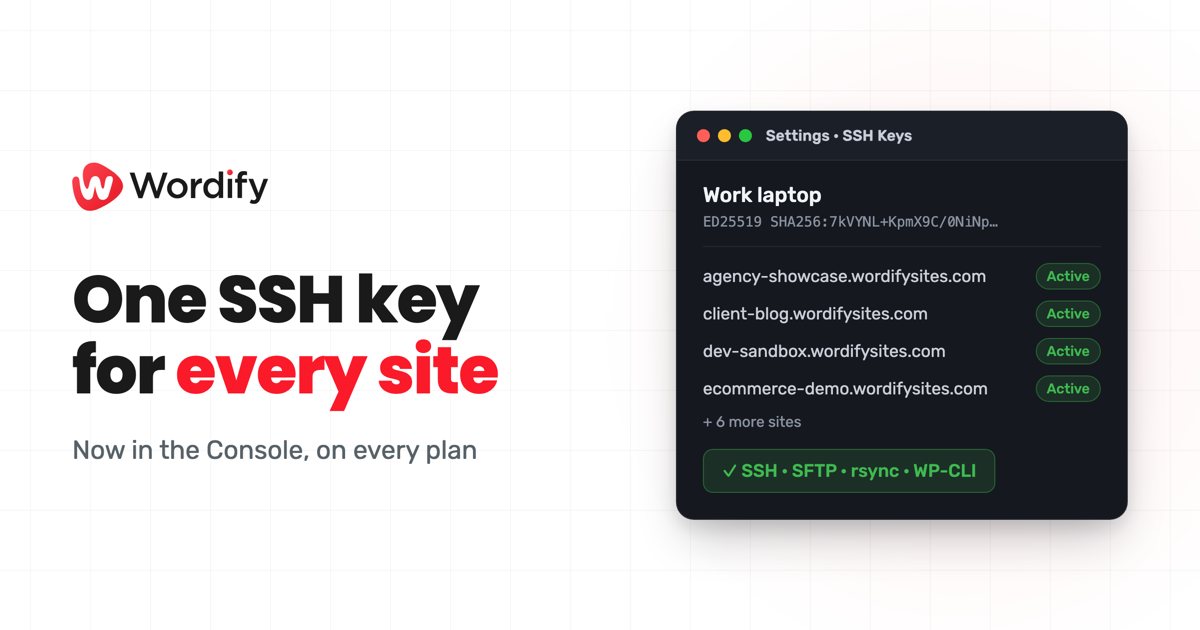
SSH keys are now built into the Wordify Console. Add your public key once, choose where it goes, and the Console puts it on those sites within a minute or two. It works for SSH, SFTP, rsync, and WP-CLI, on every plan, including Dev Sites.
One key, every site
Open Settings › SSH Keys, paste your public key, and pick where it goes:
- All sites in these teams. Every site you can access on those teams, including sites added later.
- Only these sites. Just the sites you pick.
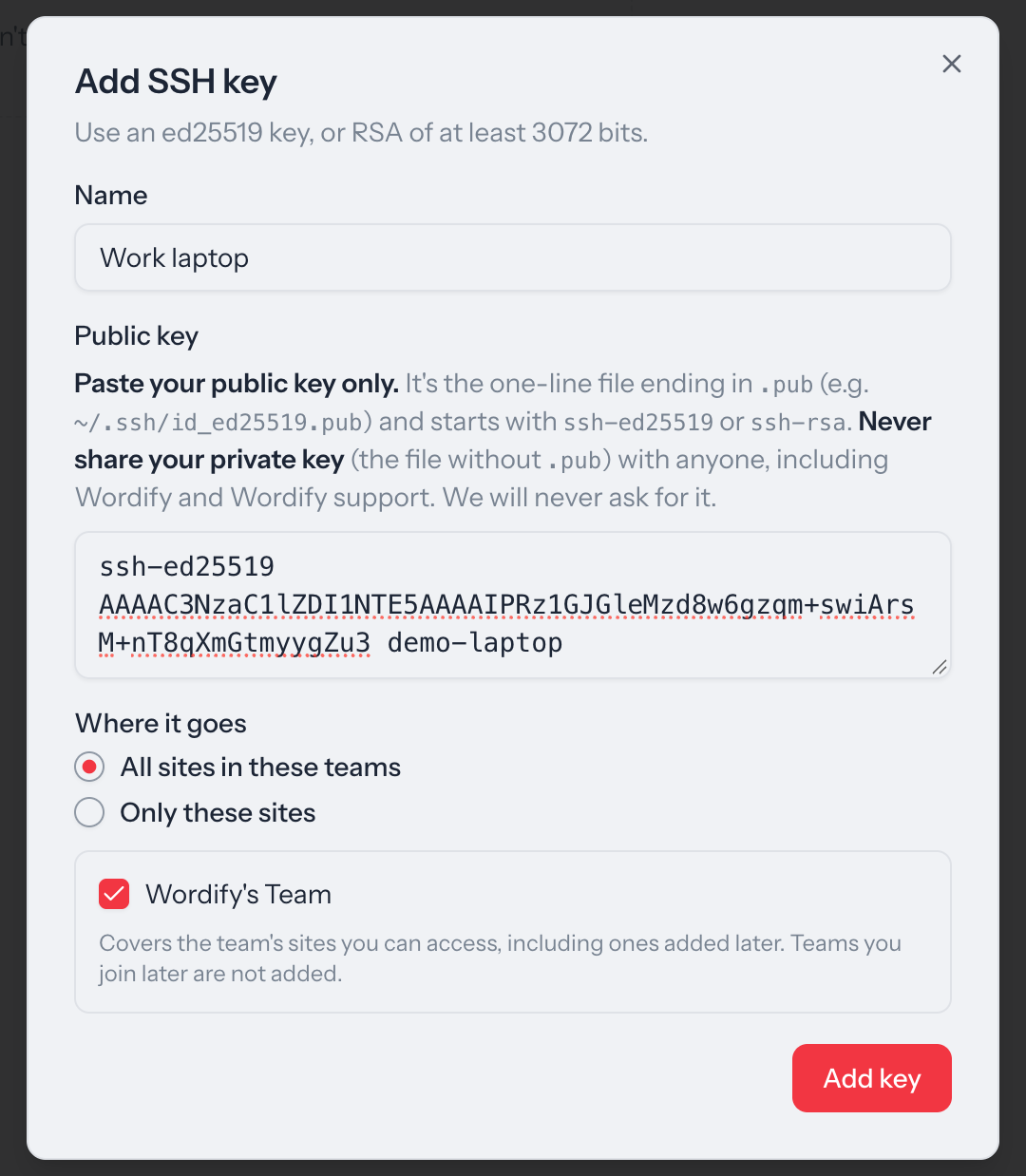
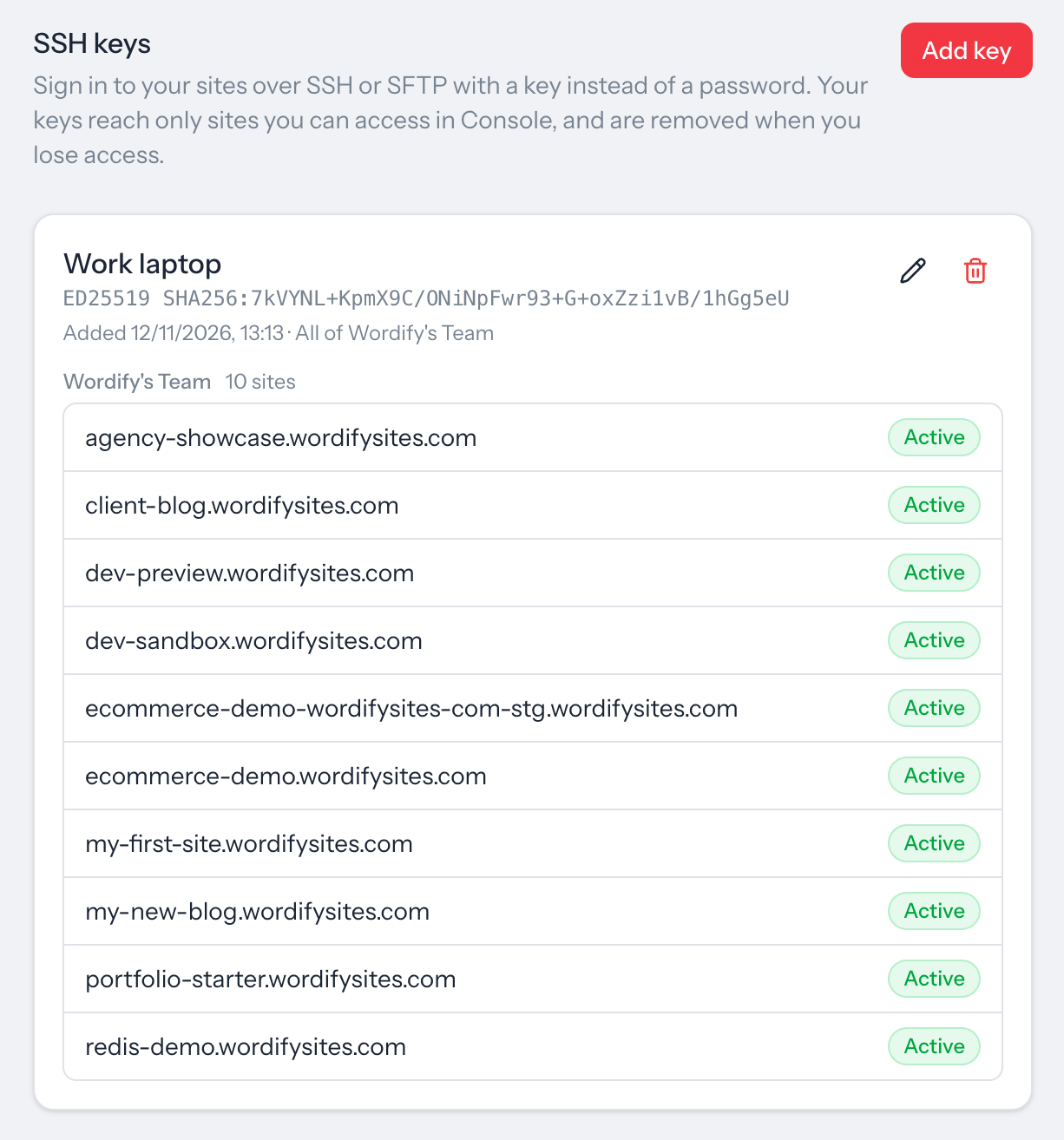
Each site shows Syncing while the key goes on, then Active when it's ready. No more copying a password per site, and no more adding keys to each server by hand.
Access stays tidy
Keys follow Console access. A key only reaches sites you can access in the Console, and if someone is removed from a team or a site, their keys come off those sites automatically. There's no separate list of servers to clean up when a contractor finishes.
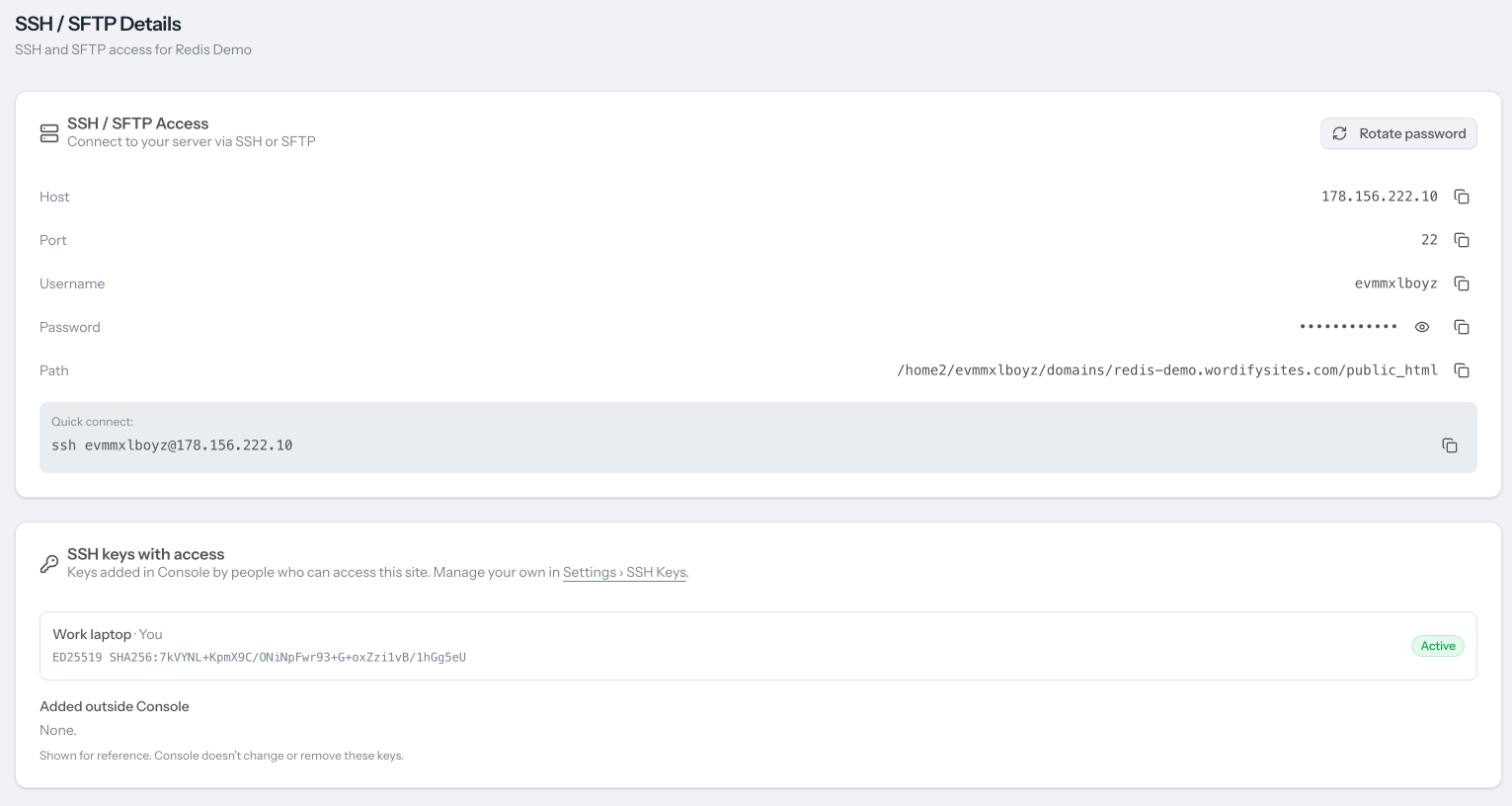
Each site's SSH / SFTP page now shows every key with access, so "who can get into this site?" has a straight answer. Keys added outside the Console, straight into authorized_keys, are listed too, so nothing is hidden.
Wordify staff helping you in your account can remove a key, but they can't add one. And we'll never ask for your private key.
Works with your AI tools
If you use Claude or another AI assistant with the Wordify MCP, it can manage keys for you. Try "add my laptop key to example.com", "show me who can get into this site", or "take my old key off every site". Your assistant works with your public key only. It never needs the private one.
Nothing breaks
Your SSH and SFTP passwords keep working, so adding a key doesn't lock anyone out. Keys you've already added by hand are left alone.
Good to know
- We accept ed25519 keys and RSA keys of 3072 bits or more.
- Keys aren't available on sites that share a hosting account (some older imports and legacy staging sites).
- Sites that are suspended, or restricted because of an unpaid invoice, don't carry keys. They come back when the site does.
- Keys belong to people, not teams. Each team member adds their own.
How to add your key
- In Console, open Settings › SSH Keys.
- Click Add key, give it a name, and paste your public key (the
.pubfile). - Under Where it goes, choose your teams or specific sites.
- Click Add key, and connect once each site shows Active.
SSH keys are available now on every plan, at no extra cost.
Need to create a key first, or want the detail? Read Managing SSH keys in the Console. Questions? Our support team is here 24/7.