
Cleared every cache and still seeing stale pages? Your old caching plugin may still be running
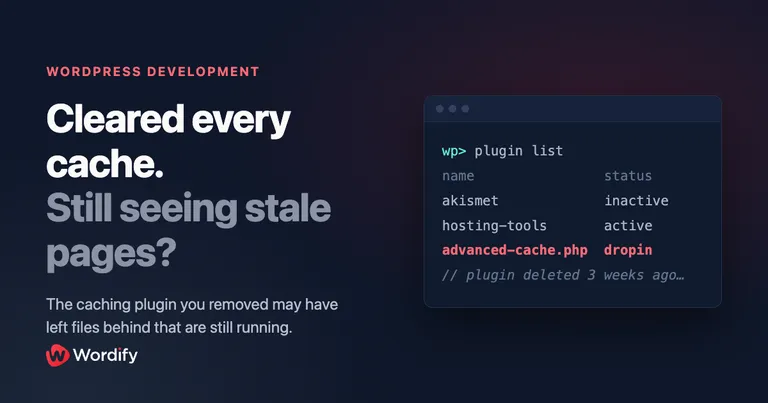
You’ve made the change. It shows in the editor, it shows in the preview, and the client still can’t see it.
So you start clearing caches. The page cache. The CDN. Cloudflare, twice, with dev mode on for good measure. A hard refresh, an incognito window, a different browser on a different machine. Nothing. The front end keeps serving a version of the page that’s days or weeks old.
Then someone adds a random query string to the URL, something like /about/?nocache=1, and the fresh page appears instantly.
If this sounds familiar, here’s the question worth asking before you blame your host: did this site ever run a caching plugin that’s since been removed?
We’ve diagnosed this exact situation several times in support recently. One agency migrating around 100 client sites away from third-party caching plugins found stale pages on at least three of them, weeks after the plugins were gone. Another case involved a staging site that kept showing the old production design: the production site’s caching plugin had been cloned across with the site, cache and all, and even though it looked switched off, it was still quietly serving old copies of a handful of URLs.
In every case the site owner had checked the obvious places and found nothing. As one of them put it: what is telling these pages to serve from a cache folder if there’s no plugin, there’s nothing in .htaccess, and every cache has been cleared multiple times?
The answer lives in how WordPress page caching actually works, and in what caching plugins leave behind when they go.
Why deleting a caching plugin isn’t always the end of it
The drop-in that outlives its plugin
Page caching plugins don’t do their main job as normal plugins. Normal plugins load after most of WordPress core, which is far too late to serve a cached page quickly. So caching plugins install a drop-in: a file named advanced-cache.php placed directly in wp-content/. They also add one line to wp-config.php:
define( 'WP_CACHE', true );With that constant set, WordPress loads wp-content/advanced-cache.php on every single request, before any plugin, before the theme, before almost everything. If a cached copy of the requested URL exists on disk, the drop-in serves it and exits. The rest of WordPress never runs. That’s what makes page caching fast, and it’s also what makes this problem so hard to spot:
- Drop-ins aren’t plugins. They don’t appear in your list of installed plugins, they have no activation state, and they have no uninstall routine of their own.
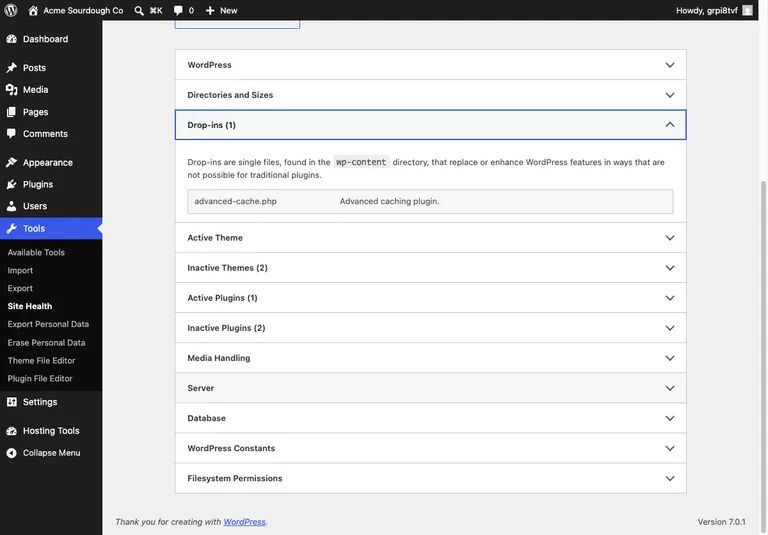
- The only places WordPress admits they exist are Tools > Site Health > Info > Drop-ins, and a “Drop-in” filter on the Plugins screen that only shows up if you know to look for it.
- Crucially, an orphaned
advanced-cache.phpdoesn’t necessarily need its parent plugin to keep serving cache files that already exist on disk.
Cleanup code only runs if WordPress runs it
A well-behaved caching plugin removes its drop-in and reverses its wp-config.php and .htaccess changes when you deactivate it, and removes its settings when you delete it. But that cleanup is just code, and code only runs when WordPress runs it:
- Deactivate the plugin in wp-admin or with WP-CLI, and its deactivation routine runs.
- Delete it from the Plugins screen, and its uninstall routine runs.
- Delete the plugin folder over SFTP, and nothing runs at all.
That last one is exactly what happens when a caching plugin breaks a site and you remove it the fast way. It’s also effectively what happens when a site is cloned or migrated: the copy includes the drop-in, the config files, and the entire cache directory, but no uninstall routine ever fires on the new copy. The plugin folder may be gone, so the plugin list looks clean, but advanced-cache.php, the WP_CACHE constant, the .htaccess rules, and megabytes of pre-generated HTML are all still in place, still doing their job. Serving the site as it looked on the day the cache was last written.
Sometimes PHP isn’t even involved
Some plugins go a step further for speed and write rewrite rules into .htaccess so that Apache serves the cached HTML file directly from disk. WP Super Cache in mod_rewrite mode, WP Fastest Cache, and W3 Total Cache’s disk-enhanced mode all work this way. With those rules in place, a request for a cached page never touches PHP at all.
Which means you can delete the plugin, delete the drop-in, and remove WP_CACHE from wp-config.php, and the server will keep serving stale HTML for as long as both the rules and the cached files remain.
LiteSpeed Cache is a further variation: its cache store lives at the web server level, outside your WordPress install entirely. Deleting the plugin doesn’t purge it, and the leftover # BEGIN LSCACHE block in .htaccess keeps telling the server to serve from it.
Even clean uninstalls leave things behind
This isn’t only about worst-case removals. Some plugins skip parts of cleanup deliberately. FlyingPress documents that deleting the plugin leaves wp-content/cache/flying-press/ in place, to avoid timeouts when deleting large cache trees. WP Super Cache’s own documentation notes that uninstalling doesn’t remove its mod_rewrite rules. W3 Total Cache states plainly that deactivation and deletion won’t remove the files and changes it has added.
None of this is malicious. It’s the predictable result of how much of your install a page caching plugin has to touch to do its job. But it does mean that “I deleted the plugin” and “the plugin is gone” are two different statements.
Diagnose it in five minutes
Work through these checks in order. You’ll usually have your answer by the second one.
1. Read the page source
Load the stale page while logged out and view the source. Most caching plugins sign their work with an HTML comment near the bottom of the page:
- WP Rocket:
<!-- This website is like a Rocket ... Performance optimized by WP Rocket --> - WP Super Cache:
<!-- Cached page generated by WP-Super-Cache on 2026-07-13 10:15:32 --> - WP Fastest Cache:
<!-- WP Fastest Cache file was created in 0.6 seconds --> - W3 Total Cache:
<!-- Performance optimized by W3 Total Cache -->
A signature from a plugin you’ve already removed is your smoking gun. So is a generation timestamp that doesn’t change when you reload.
One subtlety we’ve verified in testing: the signed page can outlive the plugin in other caches too. A CDN or your host’s server-level cache may have stored a copy of the plugin-generated HTML, comment and all, and will keep serving it after the plugin is gone until those layers are purged. The signature tells you which plugin generated the page, not necessarily which layer is serving it right now.
2. Check the response headers
curl -I https://example.com/affected-page/Typical output, trimmed to the interesting lines:
HTTP/2 200
server: nginx
last-modified: Sat, 27 Jun 2026 20:33:37 GMT
x-cache-status: HIT
cache-control: max-age=300, must-revalidate
Three things to look for:
- Plugin-specific headers. FlyingPress adds
x-flying-press-cache: HIT, LiteSpeed addsx-litespeed-cache: hit. A caching header from a plugin that isn’t installed answers the question on the spot. - A suspiciously old
last-modified. In one case we worked on, thelast-modifiedheader matched the timestamp of a gzipped file inwp-content/cache/flying-press/to the second. The “web server” answering requests was a folder of old HTML. - Leftover cache-control. Seeing
Cache-Control: max-age=0, must-revalidateon every page is a common cache-plugin fingerprint. As a bonus problem, headers like this can stop your host’s server-level cache from working at all, so the site gets slower and stays stale.
3. Look for drop-ins
List wp-content/ over SSH or SFTP and look for files that shouldn’t be there. Here’s a real listing from a test site where we deleted WP Super Cache’s folder while it was active. The plugin is gone from plugins/, but look what stayed:
$ ls -la wp-content/
-rw-r--r--  advanced-cache.php     # drop-in, still loading on every request
drwxr-xr-x  cache                  # full page cache, still on disk
-rw-r--r--  index.php
drwxr-xr-x  plugins                # wp-super-cache no longer here
drwxr-xr-x  themes
drwxrwxrwx  uploads
-rw-r--r--  wp-cache-config.php    # orphaned config
The files to know: advanced-cache.php (page cache drop-in), object-cache.php (object cache drop-in), db.php (database drop-in, W3 Total Cache), wp-cache-config.php (WP Super Cache config), the cache/ directory, and anything unexpected in mu-plugins/.
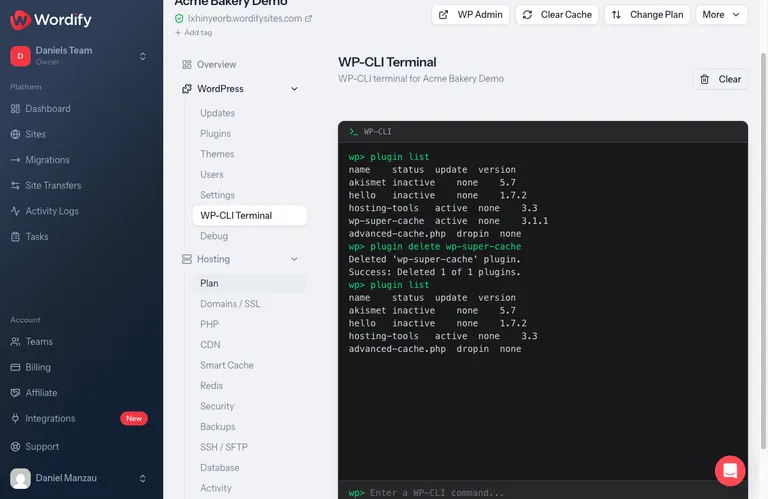
Or with WP-CLI, where a plain wp plugin list includes drop-ins at the bottom:
$ wp plugin list
name                status    update  version
akismet             inactive  none    5.7
hello               inactive  none    1.7.2
hosting-tools       active    none    3.3
advanced-cache.php  dropin    none
A drop-in with no caching plugin above it in the list is exactly the situation we’re describing. You can also filter directly with wp plugin list --status=dropin and wp plugin list --status=must-use.
You can also check Tools > Site Health > Info > Drop-ins in wp-admin, or the easily missed Drop-in filter on the Plugins screen itself.
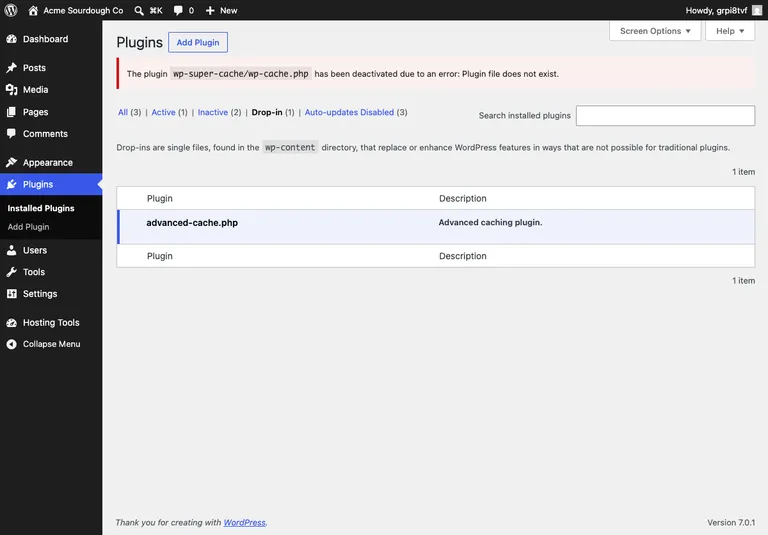
There’s one more tell on the Plugins screen. If the plugin folder was deleted while the plugin was active, WordPress shows a notice like “The plugin wp-super-cache/wp-cache.php has been deactivated due to an error: Plugin file does not exist.” That message means WordPress dropped the vanished plugin from its active list, but no cleanup code ever ran.
Open any advanced-cache.php you find. The header comment names the plugin that created it.
One caution: wp cache flush won’t help you here. It flushes the object cache, not page cache files on disk.
4. Check wp-config.php and .htaccess
grep -n "WP_CACHE\|WPCACHEHOME" wp-config.php
grep -n "# BEGIN" .htaccess
From the same test site, after the plugin was long gone:
$ grep -n "WP_CACHE\|WPCACHEHOME" wp-config.php
23:define('WP_CACHE', true);
24:define( 'WPCACHEHOME', '.../wp-content/plugins/wp-super-cache/' );
That second constant points at a directory that no longer exists. WordPress doesn’t mind: it keeps loading the drop-in on every request regardless.
Marker blocks that caching plugins leave in .htaccess:
| Marker | Plugin |
|---|---|
# BEGIN WPSuperCache |
WP Super Cache |
# BEGIN WP ROCKET |
WP Rocket |
# BEGIN W3TC ... (several blocks) |
W3 Total Cache |
# BEGIN LSCACHE / # BEGIN NON_LSCACHE |
LiteSpeed Cache |
# BEGIN WpFastestCache |
WP Fastest Cache |
5. The query string trick
Rewrite-based caches typically skip requests with query strings. If https://example.com/page/?x=1 shows fresh content while https://example.com/page/ shows stale content, the server is serving static files from disk, and no amount of purging from wp-admin will fix it. You need to remove the files and the rules.
Plugin-by-plugin cleanup
Take a full backup before editing any of these files. All paths are relative to the WordPress root. If another caching plugin is still active on the site, leave WP_CACHE and that plugin’s own files alone.
FlyingPress
What can be left behind:
wp-content/advanced-cache.php(the header comment identifies FlyingPress)wp-content/cache/flying-press/, which remains even after a clean uninstall, by designdefine( 'WP_CACHE', true );inwp-config.php
Cleanup:
- Delete
wp-content/advanced-cache.phpif its header names FlyingPress. - Delete
wp-content/cache/flying-press/. - Remove the
WP_CACHEline fromwp-config.phpif no other caching plugin needs it. - Reload the affected page and confirm the
x-flying-press-cacheheader is gone.
FlyingPress covers step 2 in its uninstall documentation.
WP Rocket
WP Rocket cleans up properly when you deactivate and delete it through wp-admin. The trouble starts when the folder is deleted over SFTP or the site is cloned, because the cleanup that normally runs on deactivation never fires. What can be left behind:
wp-content/advanced-cache.php# BEGIN WP ROCKET ... # END WP ROCKETin.htaccessdefine( 'WP_CACHE', true );inwp-config.phpwp-content/wp-rocket-config/wp-content/cache/wp-rocket/, pluscache/min/,cache/busting/,cache/used-css/,cache/critical-css/, andcache/fonts/- In the database: the
wp_rocket_settingsoption,wp_wpr_*tables, androcket_*cron events
Cleanup:
- Delete
wp-content/advanced-cache.php. - Remove everything between
# BEGIN WP ROCKETand# END WP ROCKETin.htaccess. - Delete
wp-content/wp-rocket-config/and the cache folders listed above. - Remove the
WP_CACHEline fromwp-config.phpif nothing else needs it. - Optionally clear the database leftovers: delete
rocket_*cron events (WP Crontrol makes this easy), thewp_rocket_settingsoption, and thewp_wpr_*tables.
WP Rocket publishes the full list in its uninstall documentation.
WP Super Cache
The classic case, and its own documentation is refreshingly honest about it: uninstalling doesn’t remove the mod_rewrite rules. We reproduced the bad-removal path on a test site: deleting the plugin folder while it was active left the drop-in, the config file, the WP_CACHE constant, and the full cache directory in place. To its credit, WP Super Cache’s orphaned drop-in fails safe rather than serving stale pages on its own. The bigger risks are its mod_rewrite rules on Apache, which serve cached files with no PHP involved, and the leftover files blocking whatever caching you set up next. What can be left behind:
wp-content/advanced-cache.phpandwp-content/wp-cache-config.phpWP_CACHEandWPCACHEHOMEconstants inwp-config.php# BEGIN WPSuperCache ... # END WPSuperCacherules in.htaccess(mod_rewrite mode on Apache), which serve cached HTML with PHP never runningwp-content/cache/supercache/<your-hostname>/, one folder of static HTML per page:
$ ls -la wp-content/cache/supercache/example.com/
-rw-r--r--  69740  index-https.html    # your homepage, frozen in time
Cleanup:
- Delete
wp-content/advanced-cache.phpandwp-content/wp-cache-config.php. - Remove the
WP_CACHEandWPCACHEHOMElines fromwp-config.php. - Remove everything between
# BEGIN WPSuperCacheand# END WPSuperCachein.htaccess. - Delete
wp-content/cache/. - Re-save your permalinks (Settings > Permalinks) to rebuild
.htaccesscleanly.
These steps come from the plugin’s own emergency uninstall guide.
W3 Total Cache
The most thorough offender: it can install three separate drop-ins, and deactivating or deleting it removes essentially nothing. What can be left behind:
- Three drop-ins:
wp-content/advanced-cache.php,wp-content/object-cache.php, andwp-content/db.php wp-content/w3tc-config/wp-content/cache/- Several
# BEGIN W3TC ...blocks in.htaccess(page cache, browser cache, minify) WP_CACHEinwp-config.php
An orphaned W3TC drop-in is also a classic cause of the “some files appear to be missing or out of place” error and of white screens after removal, because object-cache.php and db.php try to load plugin files that no longer exist.
Cleanup:
- If the plugin is still installed, disable every cache type in its settings first, then deactivate and delete it.
- Delete
advanced-cache.php,object-cache.php, anddb.phpfromwp-content/(check each file’s header to confirm W3TC owns it). - Delete
wp-content/w3tc-config/andwp-content/cache/. - Remove every
# BEGIN W3TCblock from.htaccess. - Remove the
WP_CACHEline fromwp-config.php. - Re-save permalinks.
LiteSpeed Cache
Different beast: the cache store belongs to the web server, not WordPress. Deleting the plugin doesn’t purge it. What can be left behind:
# BEGIN LSCACHEand# BEGIN NON_LSCACHEblocks in.htaccess, which keep server-level caching switched on- Browser cache rules (
ExpiresByType text/html) that pin stale copies in your visitors’ browsers - The server-level cache store itself, which lives outside your install
- Sometimes
wp-content/object-cache.phpif Redis or Memcached was configured
Cleanup:
- Remove the
LSCACHEandNON_LSCACHEblocks and any leftover Expires rules from.htaccess. - Purge the server-level cache. On shared LiteSpeed hosting only your host can do this, so ask.
- Delete
wp-content/object-cache.phpif LiteSpeed created it. - Because of the browser-cache rules, existing visitors may hold stale copies until their local cache expires. Test from a fresh profile.
WP Fastest Cache
What can be left behind:
# BEGIN WpFastestCache ... # END WpFastestCacherules in.htaccess, serving cached files directlywp-content/cache/all/andwp-content/cache/wpfc-mobile-cache/wpFastestCache*options and a cleanup cron event
Cleanup:
- Remove the
WpFastestCacheblock from.htaccess. - Delete
wp-content/cache/all/,wp-content/cache/wpfc-mobile-cache/, andwp-content/cache/tmpWpfc/if present. - Delete
wpFastestCacheoptions and cron events if you want a fully clean database.
Also worth checking
- Hummingbird leaves
advanced-cache.phpandwp-content/wphb-cache/behind on deactivation. - Swift Performance installs
wp-content/mu-plugins/swift-performance-loader.php, which loads even when the plugin is deactivated. - Comet Cache documents manual removal of
advanced-cache.php, theWP_CACHEline, andwp-content/comet-cache/. - WP-Optimize points its
advanced-cache.phpatwp-content/cache/wpo-cache/. - Endurance Page Cache arrives as a host-injected mu-plugin on some shared hosts, can’t be deactivated from wp-admin, and leaves
.htaccessdirecting traffic to cached pages after it’s disabled. - Redis Object Cache and similar object cache plugins leave
wp-content/object-cache.php, which usually produces a 500 error rather than stale pages once the plugin is gone. - Cache Enabler deserves a mention as the counter-example: it removes its drop-in and unsets
WP_CACHEon deactivation. You may still want to deletewp-content/cache/cache-enabler/.
Quick reference
| Plugin | Files to check | .htaccess marker |
|---|---|---|
| FlyingPress | advanced-cache.php, cache/flying-press/ |
none |
| WP Rocket | advanced-cache.php, wp-rocket-config/, cache/wp-rocket/ |
# BEGIN WP ROCKET |
| WP Super Cache | advanced-cache.php, wp-cache-config.php, cache/supercache/ |
# BEGIN WPSuperCache |
| W3 Total Cache | advanced-cache.php, object-cache.php, db.php, w3tc-config/ |
# BEGIN W3TC ... |
| LiteSpeed Cache | server-level store, sometimes object-cache.php |
# BEGIN LSCACHE |
| WP Fastest Cache | cache/all/, cache/wpfc-mobile-cache/ |
# BEGIN WpFastestCache |
All file paths are inside wp-content/, and WP_CACHE in wp-config.php applies to all of them except LiteSpeed’s server-level store.
How to remove a caching plugin cleanly
Next time, in this order:
- Turn the plugin’s features off first. Especially with W3 Total Cache: disable every cache type in its settings and save.
- Deactivate in wp-admin, not by renaming or deleting folders. Deactivation is where most caching plugins remove their drop-in and reverse their
wp-config.phpand.htaccesschanges. - Delete from the Plugins screen, which runs the uninstall routine.
- Verify. Check
wp-content/for drop-ins,wp-config.phpforWP_CACHE,.htaccessfor marker blocks, andwp-content/cache/for leftovers. Two minutes, and you’ll never be haunted later. - Re-save permalinks if you edited
.htaccess. - Purge your CDN. Edge caches may have picked up stale copies while the leftover cache was serving them, and they’ll keep those copies until told otherwise.
And the special case that catches even careful teams: clones carry the cache with them. If you’re about to clone a site to staging, or push a staging site live, remove the caching plugin properly on the source site first. Otherwise the copy arrives with a drop-in and a folder of pre-generated pages, and no plugin in the list to explain them.
The two-minute takeaway
Stale pages that survive every cache purge are almost never a mystery once you know where to look: read the page source, read the response headers, and check wp-content/ for drop-ins that outlived their plugin.
It’s also worth knowing whether your host caches at the server level. Wordify’s SmartCache works that way, so there’s no advanced-cache.php woven into your install, and removing it can’t leave a ghost behind. On any managed host, if a page won’t update no matter what you purge, leftover files from a previously removed caching plugin should be your first suspect, and your host’s support team can check the file system for you in minutes. Ours is around 24/7 if you need us.