Wordify Staging gives every site a full copy on its own domain: files, database, configuration, and PHP settings. Try the plugin update, the theme change, or the new code there. Happy? Push it to live. Not yet? Pull the live site back down and go again.
Free on every plan, on every site.
Every change to a WordPress site is a small bet. Most plugin updates go through without a fuss. The one that doesn't breaks the checkout, shifts the layout, or leaves a white screen, and now you're fixing it in front of your visitors.
The usual workarounds aren't much better. A local copy never quite matches production. A hand-built subdomain is another site to set up, keep in sync, and remember to hide from search engines. So changes get tested on live, or not at all.
A staging site is a real site, built from your live one. Everything happens from the site's Staging page in the Wordify Console.
Open the site's Staging page and click Create Staging. Wordify copies the files, the database, the WordPress configuration, and the PHP settings to a new site on its own domain.
Update the plugin, switch the theme, or deploy the new code on the staging site. It has its own WP Admin, backups, and updates, so you work on it like any other site.
Happy with it? Push to Production sends the staging site to live. Choose files and database, files only, or database only.
Live moved on while you were testing? Pull from Production refreshes the staging site with what's on the live site now, and you start again from a clean copy.
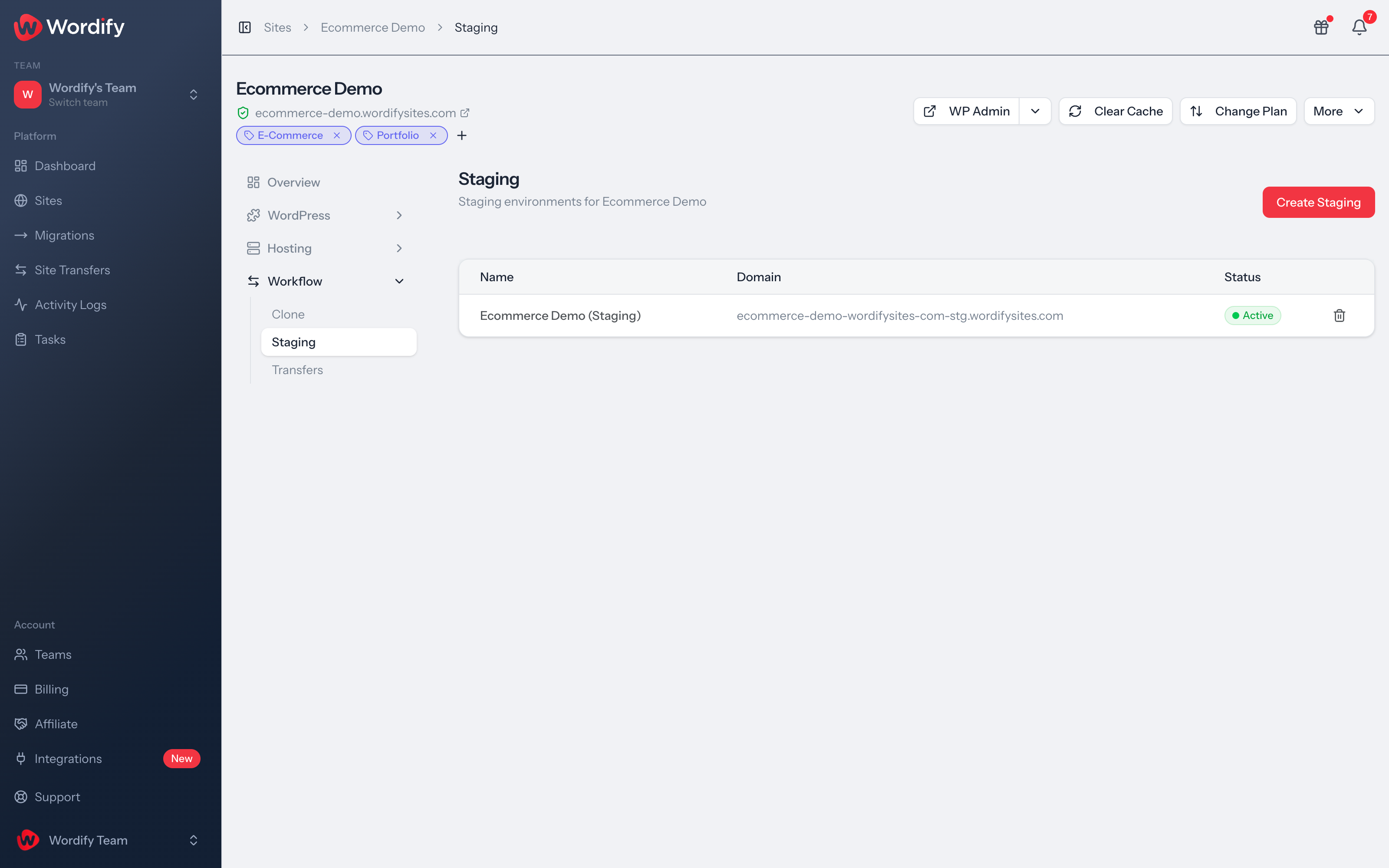
Click Create Staging, check the name and the temporary domain, and confirm. Wordify copies all WordPress files and folders, the complete database, the WordPress configuration, and the PHP settings. The status reads Setting up while it runs, then Active.
The staging site gets its own address ending in -stg.wordifysites.com, with SSL, and a checkbox keeps it out of search engines. It shows up on your Sites list with a Staging badge, and it has the same WP Admin, Backups, and Updates pages as the site it came from.
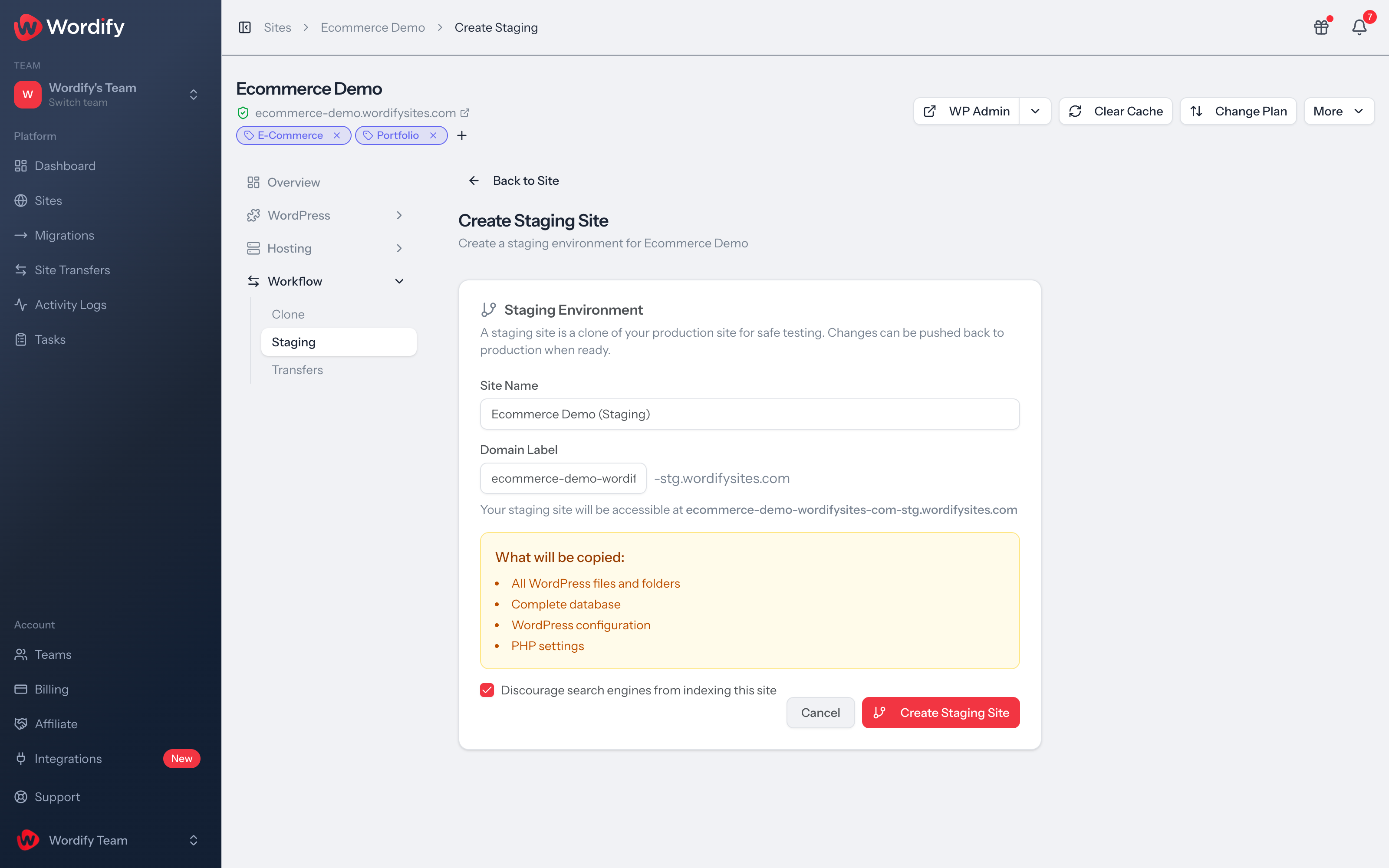
When the staging site is right, Push to Production sends it to live. Pick a sync mode first: Files & Database for the lot, Files Only when you've changed code and the live content should stay put, or Database Only when it's the other way round.
The push overwrites the live site with the staging site's content, so the dialog says so plainly and suggests a backup first. Backups are a page away on every site.
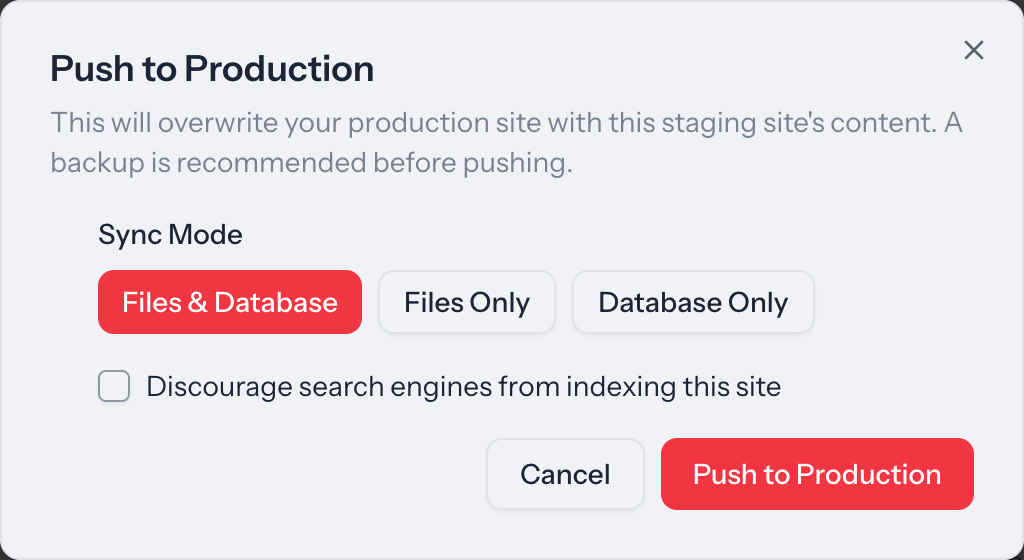
Staging sites drift. Orders come in, posts get published, a client edits a page, and the copy you made last week no longer looks like the site. Pull from Production overwrites the staging site with the latest live content, with the same choice of files, database, or both.
So you keep one staging site per site and refresh it when you need a clean copy, instead of deleting and rebuilding. Open Parent takes you back to the live site whenever you want to compare.

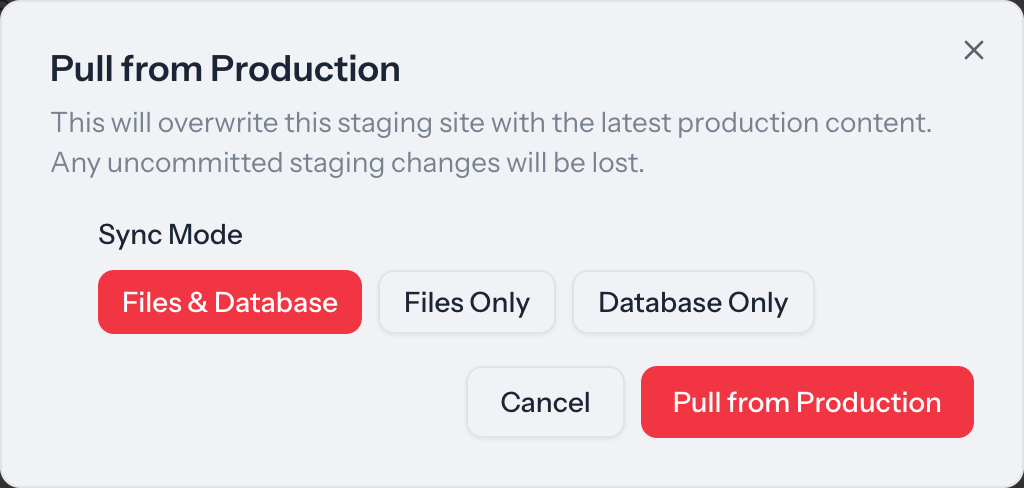
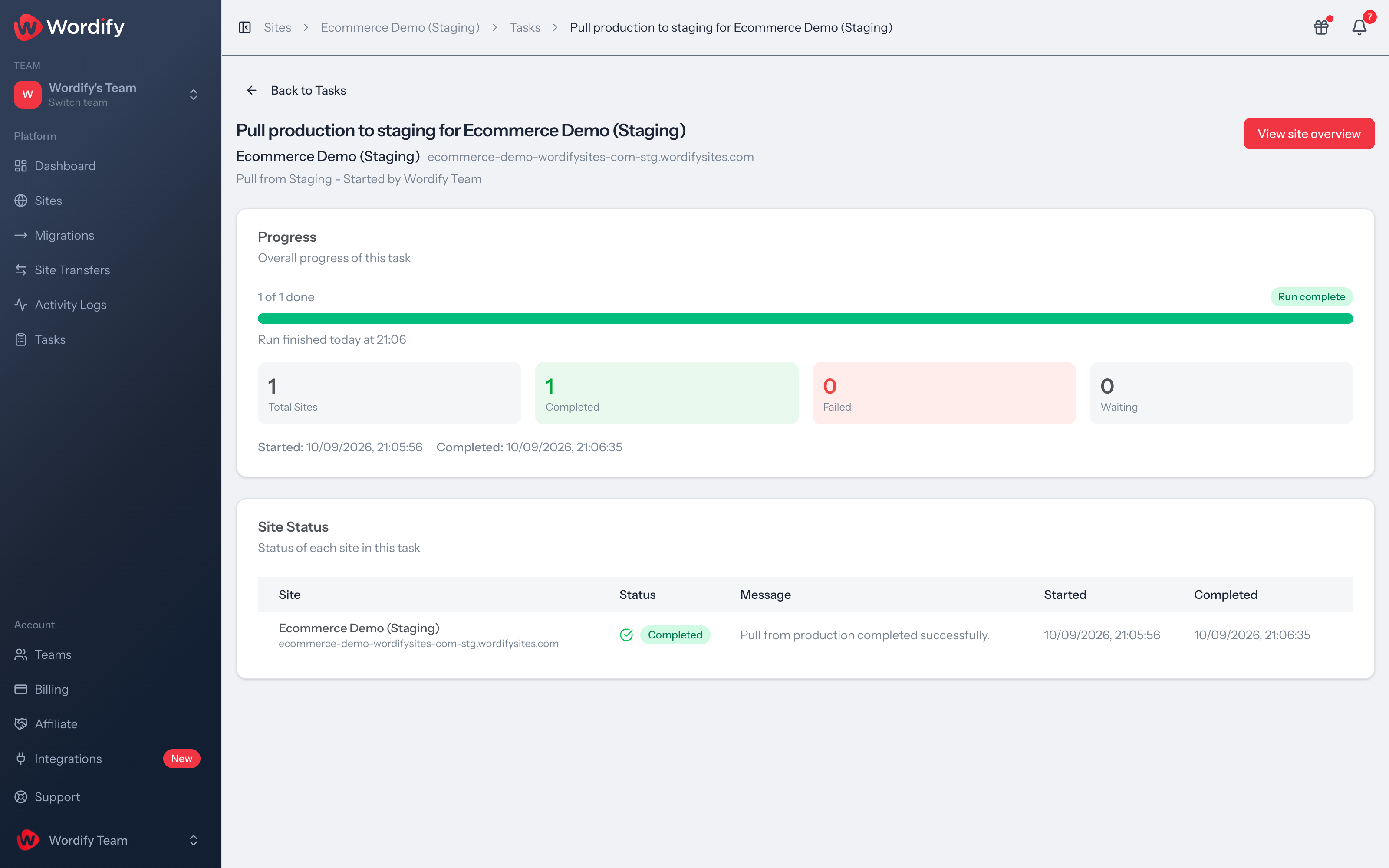
Creating a staging site, pushing, and pulling each run as a task. Open one on your Tasks page and you see when it started, when it finished, and the outcome for the site.
Nothing to install and nothing to keep in sync by hand. Staging is part of the hosting, so it's there on every site from the day it's created.
| Testing on the live site | A copy you set up yourself | Wordify Staging | |
|---|---|---|---|
| Changes stay away from visitors until you say so | No | Yes | Yes |
| Files, database, configuration, and PHP settings copied for you | n/a | Up to you | Yes |
| Its own domain with SSL | n/a | Up to you | Yes |
| Push files, database, or both back to live | n/a | Up to you | Yes |
| Refresh the copy from live | n/a | Up to you | Yes |
| Keep it out of search engines | n/a | Up to you | One checkbox |
| Same dashboard tools as the live site | Yes | Up to you | Yes |
| Included with hosting | Yes | No | Free on every plan |
Prefer to script it? Staging is in the API and the AI connector too.
No. Staging is free on every Wordify plan and on every site, agency plans and single-site plans alike.
All WordPress files and folders, the complete database, the WordPress configuration, and the PHP settings. The staging site runs at its own address ending in -stg.wordifysites.com, with SSL.
There's a Discourage search engines from indexing this site option when you create the staging site, and the same option again when you push to production.
Push to Production overwrites the live site with the staging site's content. You choose what goes: files and database, files only, or database only. We recommend taking a backup first, and every site has a Backups page for exactly that.
Yes. Pull from Production overwrites the staging site with the latest production content, with the same choice of files and database, files only, or database only.
A staging site is a copy of a site you already run, for testing changes before they go live. Wordify Dev Sites are separate, password-protected preview sites for building something new and getting client approval. Agency plans include five free Dev Sites; the pricing page has the details.
Staging sites start with it off, so nothing changes on your staging site unless you ask. You can turn it on from the staging site's Updates page if you want it there too.
Yes, from the site's Staging page. Deleting is permanent, and you can create a fresh staging site whenever you need one.
Yes. The Wordify API has endpoints to create, push, and pull staging, and the AI connector lets you ask Claude or ChatGPT to clone a site to staging.
The help article walks through creating a staging site step by step, and pricing covers what's included on each plan.
Every Wordify site comes with staging. Open the site, choose Staging under Workflow, and create your copy.