
How to fix Elementor 4.3 “Server Error.” when saving (headers already sent by elementor/core/files/css/base.php:244)
Status on September 29, 2026: Elementor 4.3.2 is the latest version and doesn’t fix this yet. Elementor is investigating it in GitHub issue #37468. The workaround below is safe to leave in place, and we’ll update this post when a fixed release ships.
You click Update in Elementor and a message pops up: “Server Error.” No status code, no detail. Or you’re in the block editor, perhaps saving ACF fields on a page built with Elementor, and WordPress says “Updating failed. The response is not a valid JSON response.” It looks like Elementor isn’t saving, but reload the editor and your changes are usually there.
If the site has updated to Elementor 4.3 in the last week, this is almost certainly a bug that arrived in Elementor 4.3.0. It only affects sites where Elementor’s CSS Print Method is set to Internal Embedding, and switching that setting to External File fixes it in about two minutes. We’ve fixed it on customer sites at Wordify this week, traced it to the line in Elementor’s code that changed, and reproduced it on a clean test site.

The error in your PHP log
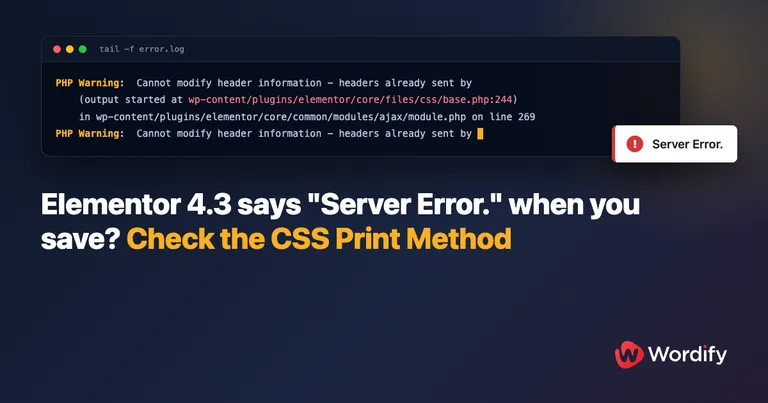
With debug logging on, or in your server’s PHP error log, each failed save in the Elementor editor leaves this warning:
PHP Warning: Cannot modify header information - headers already sent by (output started at .../wp-content/plugins/elementor/core/files/css/base.php:244) in .../wp-content/plugins/elementor/core/common/modules/ajax/module.php on line 269REST API requests, which include saves from the block editor and anything reading /wp-json/, log a second version that ends in WordPress’s REST server instead:
PHP Warning: Cannot modify header information - headers already sent by (output started at .../wp-content/plugins/elementor/core/files/css/base.php:244) in .../wp-includes/rest-api/class-wp-rest-server.php on line 1930Either way, the part to match is elementor/core/files/css/base.php:244. We captured both lines on our test site running WordPress 7.1.2; the line number in class-wp-rest-server.php can differ on other WordPress versions.
What a bare “Server Error.” means
Elementor’s editor builds this message from the server’s reply. If the server returns an error status, the status goes in the message, as in “Server Error (500 Internal Server Error).” If the server returns HTTP 200, a normal success, but the editor still can’t use the reply, you get “Server Error.” with nothing after it. In this bug the reply isn’t valid JSON, because extra output has been added in front of it. The request reached the server and finished, which is why the save has usually gone through.
The guides that come up for “Elementor server error when saving” mostly deal with the numbered versions (500, 403, 413), which come from things like PHP memory limits, security rules, or upload limits. Raising the memory limit or clearing revisions won’t change anything here.
Is this your bug?
It probably is if all of these are true:
- The site runs Elementor 4.3.0, 4.3.1 or 4.3.2. Elementor 4.3.0 came out on September 22, 2026, 4.3.1 on September 23 and 4.3.2 on September 24. Plenty of sites took them through auto-updates.
- CSS Print Method is Internal Embedding. You’ll find it on the Performance tab of Elementor’s settings.
- The message has no number. “Server Error (500 Internal Server Error).” or a 403 is a different problem.
- Only some pages fail. The usual ones render other Elementor content while they save: templates, global widgets, loop grids, and add-on widgets such as Unlimited Elements. Simple pages often save normally. With Yoast SEO active, ordinary pages can fail too (more on that below).
Deactivating other plugins generally won’t stop it, because the bug is in Elementor’s free core plugin. Yoast SEO is the exception we know of. Elementor Pro isn’t the cause: one of the sites we fixed was still running Elementor Pro 4.2.2.
The fix: switch CSS Print Method to External File
You’ll need an administrator account in WordPress.
- Go to Elementor → Editor → Settings and open the Performance tab. (Before Elementor’s newer admin menu, this was Elementor → Settings.)
- Set CSS Print Method to External File, then click Save Changes.
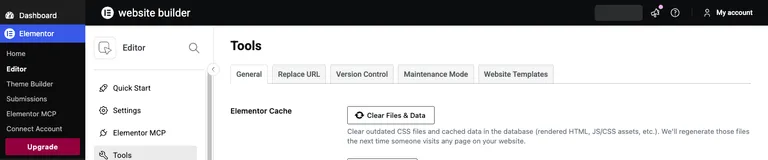
- Go to Elementor → Editor → Tools. On the General tab, click Clear Files & Data. Elementor rebuilds each page’s CSS file the next time the page is visited.
- Clear your page cache and CDN, if you use them.
- Open one of the pages that was failing and save it again. It should save without an error.
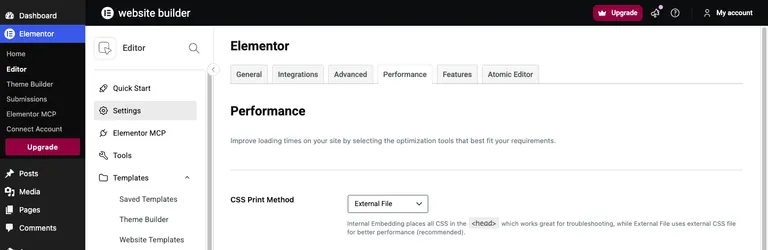
External File is Elementor’s default setting. Elementor’s own description of the setting says External File gives “better performance (recommended)”, so there’s no reason to rush back to Internal Embedding.
Older forum answers call the button in step 3 “Regenerate Files & Data”. In Elementor 4.3.2 it’s labelled Clear Files & Data.
If your site is on Wordify, step 4 is the Clear Cache button in the Console. Our help article on this error walks through the same steps with the Console screens.
Don’t restore a backup for this
The CSS Print Method is stored in your site’s database, so restoring a backup brings the same setting back along with older content. The error returns on the next save, and you’ve lost whatever changed since the backup. One of our customers restored their site three times before getting in touch.
Why sites with Yoast SEO can fail on every page
A report on Yoast SEO’s GitHub (#23638) describes the same “Server Error” on a new page containing a single Heading widget, with Yoast SEO active. With Yoast deactivated the page saved normally, which makes Yoast look like the cause.
We tested this on a new site running Elementor 4.3.2 and Yoast SEO 28.5, with Internal Embedding on and a page built from nothing but Heading widgets:
- Yoast SEO active: four of six saves failed with “Server Error.”, and the save response started with
<style id="elementor-post-6">before the JSON. - Yoast SEO deactivated: both saves went through cleanly.
- Yoast SEO active, CSS Print Method switched to External File: both saves went through cleanly.
Earlier, while the same page held a single Heading widget, it saved without an error even with Yoast active. We think the amount of CSS on the page plays a part, which would explain why reports differ on which pages fail.
Yoast is another route into the same Elementor bug. When a post is saved, Yoast SEO builds its index of the post’s links and images, and to do that it runs the content through WordPress’s the_content filter (in src/builders/indexable-link-builder.php in Yoast SEO 28.5). On an Elementor page, that filter renders the page, and rendering reaches the CSS code described in the next section. Turning Yoast off closes that one route, while templates, loop grids and add-on widgets can still trigger it. Switching to External File fixes every route, so you can keep Yoast active and change the setting.
What changed in Elementor 4.3.0
With Internal Embedding, Elementor keeps each page’s CSS in the database and adds it to the page inline. The code that does this is Base::enqueue() in core/files/css/base.php.
In 4.2.4, that code printed a <style> tag directly only when the stylesheet it attaches to, elementor-frontend, had already been printed, for example when a template renders in the footer. Otherwise it called wp_add_inline_style(), which queues the CSS to go out with that stylesheet.
Elementor 4.3.0 added a second condition: also print the <style> tag directly when elementor-frontend isn’t registered at all.
-			// If the dependency has already been printed ( like a template in footer )
-			if ( wp_styles()->query( $dep, 'done' ) ) {
+			$is_dependency_registered = (bool) wp_styles()->query( $dep, 'registered' );
+
+			if ( ! $is_dependency_registered || wp_styles()->query( $dep, 'done' ) ) {
 				printf( '<style id="%1$s">%2$s</style>', $this->get_file_handle_id(), $meta['css'] );
On a normal page view elementor-frontend is registered, so nothing changes. Elementor registers it on the wp_enqueue_scripts hook, though, and that hook doesn’t run during an editor save (an admin-ajax request) or a REST API request. So when a save renders Elementor content, the CSS is printed straight into the response, ahead of the JSON. PHP can no longer send the JSON header, which is the warning in your log, and the editor can’t read the reply.
External File avoids the whole branch: the CSS goes into a file that’s enqueued with wp_enqueue_style(), and nothing is printed into the response.
Other symptoms people have reported
The same cause shows up in a few other places. These come from reports on Elementor’s GitHub, and we reproduced the first two on our test site:
- REST API responses start with CSS. A request such as
GET /wp-json/wp/v2/pages/123returns<style id="elementor-post-123">before the JSON, which breaks headless front ends and anything else that reads the API (#37468, #37298). On our test site it happened even for a page with a single Heading widget, and stopped once the setting was switched to External File. - JavaScript that reads the API throws a JSON error. Headless front ends, custom scripts and
fetch()calls fail withSyntaxError: Unexpected token '<', "<style id="... is not valid JSON. That’s the wording in current Chrome and Node, which we saw on our test site. - ACF fields don’t save on pages that use Elementor (#37298).
- Custom AJAX responses break when they render Elementor shortcodes or loop templates (#37468).
If any of those match and CSS Print Method is Internal Embedding, the same fix applies.
Switching back to Internal Embedding
Only switch back if you chose Internal Embedding for a specific reason. Wait for an Elementor release that fixes issue #37468, update to it, switch the setting back, and test a save on one of the pages that was failing.
How we found it
The warning above showed up in the PHP error logs on customer sites the same week Elementor 4.3.0 rolled out. Matching base.php:244 against the Elementor source led to the change in Base::enqueue(), and switching the setting on a customer site stopped the error, while switching it back brought it straight back. We then rebuilt it on a clean Wordify test site with Elementor 4.3.2, which is where the Yoast SEO results and the screenshots above come from. We’ve added our findings to Elementor’s GitHub issue.
If your site is on Wordify and saves still fail after switching to External File, start a chat with our support team and paste the exact message. We’ll check your site’s logs.
Frequently asked questions
Is Elementor not saving my changes?
Usually it is saving them. A bare “Server Error.” means the server finished the request and the editor couldn’t read the reply. Reload the editor and check your changes before you redo any work.
Why does Elementor say “Server Error.” with no error code?
The server answered with HTTP 200, but the reply wasn’t valid JSON. In Elementor 4.3 that’s usually page CSS printed in front of the JSON, which happens when CSS Print Method is set to Internal Embedding. A message with a code, such as “Server Error (500 Internal Server Error).”, points to a different problem.
Is Elementor Pro causing the Server Error?
No. The bug is in the free Elementor plugin. We’ve seen it on a site that was still running Elementor Pro 4.2.2.
Why does the block editor say “Updating failed. The response is not a valid JSON response”?
It’s the same bug. When the block editor saves a page that uses Elementor, WordPress renders the content for the REST API response. Elementor prints the CSS in front of the JSON, and the editor can’t read the reply.
Should I roll back to Elementor 4.2.4?
Rolling back does stop the error, because 4.2.4 doesn’t have the change. The setting fix is quicker, though, and it keeps you on the current release, including the fixes listed in the 4.3.1 and 4.3.2 changelogs.
Will External File slow my site down?
Elementor describes External File as the better-performing option and recommends it. It’s also Elementor’s default setting.
Is my hosting causing this?
No. The cause is a change in Elementor’s own code, so it isn’t specific to any host. The fix is the CSS Print Method setting above.