
Migrate Guru “Error while creating the table wp_posts”: the cause and the one-line fix
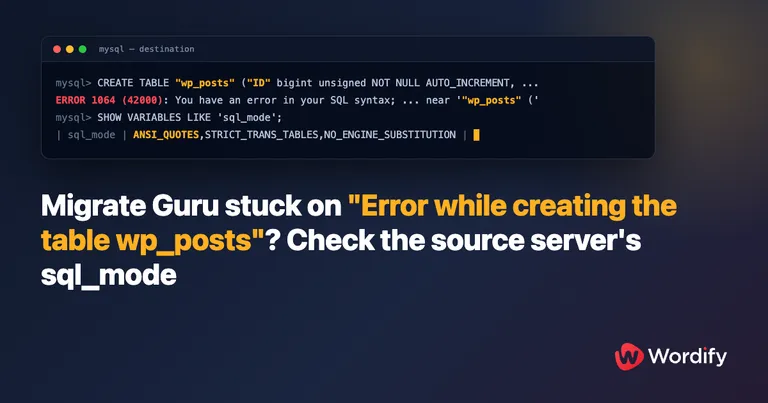
You’re moving a WordPress site with Migrate Guru. It connects, starts, and then stops with:
Error while creating the table wp_posts. Please contact support team.
You retry and it fails at exactly the same point. The destination host’s logs show nothing. If you give up on the plugin, export the database yourself, and import it through phpMyAdmin instead, that fails too, with a MySQL syntax error on the very first CREATE TABLE.
We hit this while moving a customer’s sites to Wordify, and the public threads about the message rarely reach a root cause. In this case the cause is a single MySQL setting on the server you’re migrating from, and the fix is one line in the Migrate Guru plugin on that server. Here’s how to confirm it in 30 seconds and fix it in a few minutes.
Why it fails on wp_posts
Migrate Guru copies your database one table at a time. For each table it asks the source server for the definition with SHOW CREATE TABLE, then replays that definition on the destination to create an empty copy before filling it with rows.
MySQL has a mode called ANSI_QUOTES. When it’s on, the server treats double quotes as identifier quotes rather than string quotes, so SHOW CREATE TABLE hands back definitions that look like this:
CREATE TABLE "wp_posts" ("ID" bigint unsigned NOT NULL AUTO_INCREMENT, ...instead of the usual backticks:
CREATE TABLE `wp_posts` (`ID` bigint unsigned NOT NULL AUTO_INCREMENT, ...A MySQL or MariaDB server running the default mode, which is what almost every host runs, reads "wp_posts" as a string rather than a table name and rejects the statement as a syntax error. Migrate Guru’s create step only reports success or failure, so the plugin shows you the generic message and nothing useful lands in the destination’s error logs.
The error names wp_posts simply because it’s the first table Migrate Guru creates. Every table after it would fail the same way. It just never gets that far.
We confirmed this by switching on the MariaDB general query log on the destination during a migration attempt: the CREATE TABLE arrived with double-quoted names, exactly as the source had written it. After the fix below, the same statement arrived with backticks and the migration ran through in about ten minutes.
Check the source server in 30 seconds
Run this against the old site’s database, through phpMyAdmin, Adminer, a database plugin, or the MySQL command line:
SHOW VARIABLES LIKE 'sql_mode';If the value contains ANSI_QUOTES, or ANSI (which switches it on as part of a bundle), this article is your fix. If it doesn’t, you have a different problem and the sections below won’t help.
ANSI_QUOTES isn’t part of MySQL’s default sql_mode, so you’ll usually only find it on a self-managed server where someone set the mode by hand. In our case the source was a self-managed cloud server running MySQL 8.0.
The one-line fix
The fix goes on the source site, the one you’re migrating away from. Fixing the destination can’t work: the import side of a Migrate Guru migration runs through BlogVault’s own script, which opens its own database connection and sets its own sql_mode, so nothing you configure on the destination reaches it.
Migrate Guru’s wp_db.php has a short function called showTableCreate(). Add one line so the plugin reads each table definition with standard quoting:
public function showTableCreate($table) {
    $this->query("SET SESSION sql_mode = ''");
    return $this->getVar("SHOW CREATE TABLE $table;", 1);
}
Only the SET SESSION sql_mode line is new. The other lines are already there and stay exactly as they are.
- Log in to the old site’s WordPress admin.
- Go to Plugins, then Plugin File Editor. If the site uses a block theme, WordPress moves this to Tools, then Plugin File Editor.
- In the “Select plugin to edit” dropdown choose Migrate Guru and click Select.
- In the file list on the right, open wp_db.php.
- Find the function that starts with
public function showTableCreate($table) {. It’s near the top of the file. - Add the
SET SESSION sql_modeline directly beneath that opening line, as shown above. - Click Update File.
- Run the migration again from Migrate Guru as normal. It should now get past wp_posts and copy every table.
Setting sql_mode to an empty string on the session only affects the queries Migrate Guru runs on that connection during the migration. It doesn’t change your old site’s data, and it doesn’t touch the server’s global setting. The plugin is removed after the move anyway.
If the Plugin File Editor is missing
Some hosts disable the file editor. Make the same one-line edit to wp-content/plugins/migrate-guru/wp_db.php over SFTP or your host’s file manager, then run the migration.
If you’re importing a SQL dump instead: MySQL #1064 near ‘”wp_…’
Same cause, different symptom. A dump exported from a server with ANSI_QUOTES on has the double-quoted names baked into every CREATE TABLE. Import it into a standard server and it fails on the first table with something like:
#1064 - You have an error in your SQL syntax; ... near '"wp_actionscheduler_actions" (' at line 1The table name in the error is just whichever table comes first in the dump. You have two options:
- Import with the matching mode, so the server reads double quotes as identifiers for that session only:
mysql --init-command="SET SESSION sql_mode='ANSI_QUOTES'" dbname < dump.sql - Or hand the dump to your new host and ask them to import it with that setting.
Frequently asked questions
Is the destination host the problem? No. The destination is behaving correctly by rejecting the statement. The double quotes come from the source server’s sql_mode, and only the source can be told to write standard quoting.
Will retrying, repairing tables, or matching PHP versions help? Not for this cause. The failure is deterministic: the same statement arrives with the same quotes every time. If your sql_mode check above is clean, the message has a different cause, because Migrate Guru shows the same text for any failed table creation. Start with the destination database user’s CREATE privilege and the destination’s database error log.
Does the edit change my live site? No. It changes how Migrate Guru reads table definitions during the migration, nothing else. Your content, settings, and the server’s global sql_mode are untouched.
Do I need to undo the edit afterwards? No. Delete Migrate Guru from both sites once the move is done, as you normally would. If you keep the plugin, the next plugin update overwrites the file.
Moving to Wordify? We’ll do this for you
Migrations to Wordify are free on every plan. If you’d rather not edit plugin code, open a migration request from the Console and give us a WordPress admin login for the old site. We’ll apply the fix, move the site, and check it over. Support is available 24/7 with a one-hour response time, and every new account is covered by our 100% money-back guarantee for the first month.
There’s a shorter version of this guide in our help centre: Migrate Guru fails with “Error while creating the table wp_posts”.