Your team, your clients, your contractors. Everyone who works on your WordPress sites gets their own login and only the access they need. With Agency Access, a client connects your whole agency with one invite.
Included with every Wordify team. Billed per site, never per person.
Turn the sound on for the voiceover.
A lot of agency client work still runs on one shared login. Nobody has their own two-factor, the client can't tell who changed what, and when someone leaves you change the password on every client they touched.
Your client connects your agency team once. From then on, who works on their sites is decided by your team, not by a password.
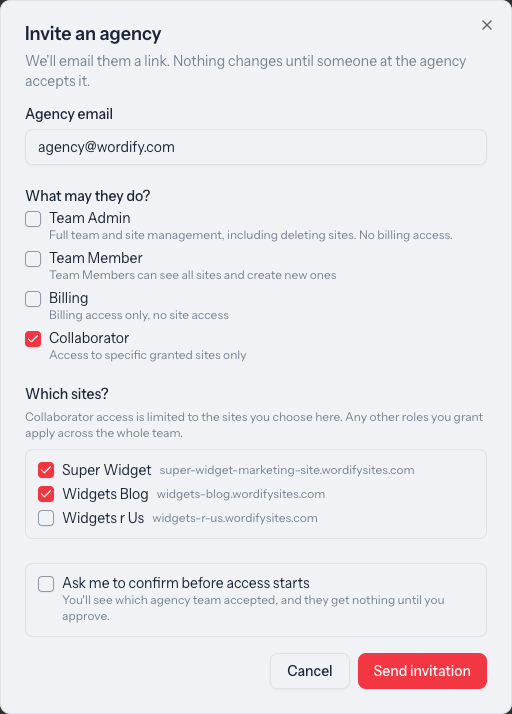
From their team page, they enter your agency's email and pick what you can do. One invite covers the whole agency, not each person.
The connection is to your agency team. Everyone on it whose role fits gets access to that client's sites, under their own login.
The client appears in each person's team switcher. Nobody shares a password, and every change is recorded.

Your staff get client access from their role at your agency. Add a developer to your team and every connected client shows up in their team switcher. You don't wait on each client to add them.
When someone leaves, remove them from your team. Their access to every connected client goes with it, and there's no shared password left to change.
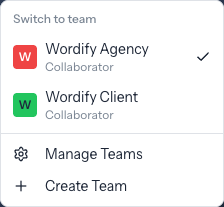
Make a freelancer a Collaborator and they start with no sites. You choose which ones they can open, on your own sites or on a client's, one at a time. Take a site away and it's gone from their dashboard on their next page load.
Collaborators don't see your other sites or your billing. On the sites they have, they work in Console and log in to WordPress admin as themselves.
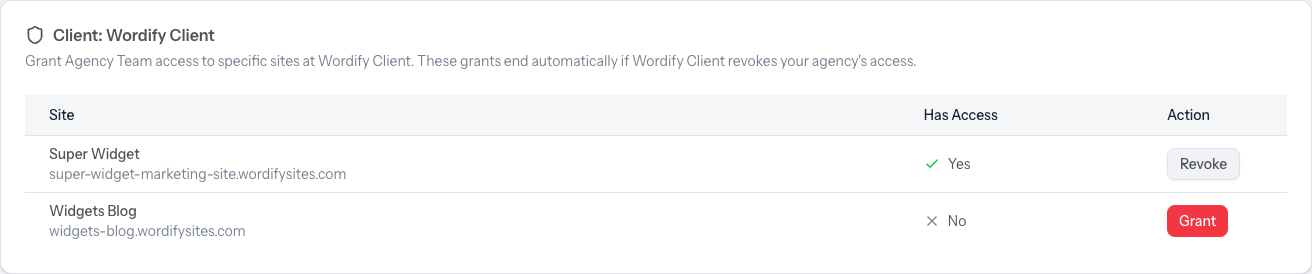
Your client sets the limit: full management, all sites, billing only, or a named handful of sites. They can ask to approve the connection before any access starts. Each person at your agency gets whichever is smaller: what the client allowed, or what they can already do at your agency.
They can change the roles, change the sites, or disconnect at any time, and you get an email when they do. Nothing changes silently, and an agency can never manage the client's own team members.
Send a finished site to your client's email address. When they accept, it moves to their team and their billing, and you can stay on as their agency.
From the site in Console, enter your client's email address.
They accept from the email and pick their plan. The site moves to their team and their billing, with no migration and no downtime. The link lasts seven days.
When accepting, the client can tick Keep agency access. Your agency is connected straight away with Team Member access, and they can change or remove it any time.
The client needs a payment method on their team, because the site bills to them from then on.
Every site change, WordPress update, sign-in, and team change is recorded with who did it and when. Your client sees your agency's name against the work. You see which of your people did it.
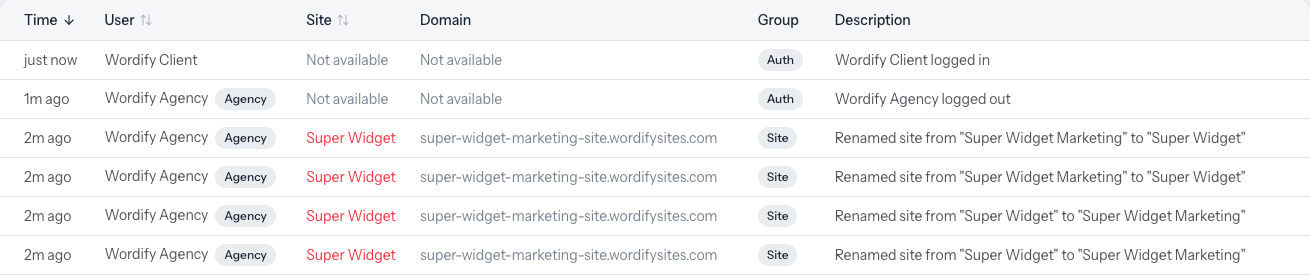

Filter by site, by team member, or by type of change. Developers can read the same log through the API.
Separate logins used to mean a lot of inviting and removing. Agency Access keeps the separate logins and drops the chasing.
| One shared login | Each client adds each person | Wordify Agency Access | |
|---|---|---|---|
| Everyone signs in as themselves | No | Yes | Yes |
| Two-factor authentication per person | No | Yes | Yes |
| A new hire reaches every client | Once they have the password | After every client adds them | From their role on your team |
| When someone leaves | Change the password everywhere | Ask every client to remove them | Remove them from your team once |
| Contractors limited to chosen sites | No | Depends on the client | Yes |
| Your staff kept off the client's member list | n/a | No | Yes |
| Client can see which agency did the work | No | Yes | Yes |
| Client can end access in one step | Change the password | Remove each person | Yes |
Turn it on once and every member has to set up two-factor authentication before they can use Console. A client's rule also covers agency staff working on their sites.
Anyone with access to a site opens WordPress admin from Console in one click. No shared admin password, and each login is recorded.
Each person creates their own tokens, read-only or limited to areas like sites or billing. A token can never do more than the person who made it.
Connect Claude or ChatGPT to Wordify and it works within your role. A Collaborator's assistant sees only that Collaborator's sites.
Every team has one Owner. When you invite someone, you give them one or more of the other roles. Roles add together, so a person can be both a Team Member and Billing.
| Role | What they can do | Typical person |
|---|---|---|
| Owner | Everything: sites, billing, and the team. Only the Owner can close the team or hand ownership to someone else. | The account holder |
| Team Admin | Manage the team and every site, including deleting sites. No billing access. | Lead developer, ops |
| Team Member | See every site and create new ones. Can't delete sites or manage the team. | In-house designers and developers |
| Billing | Invoices, payments, and billing details. No site access. | Bookkeeper, finance manager |
| Collaborator | Only the sites you choose. | Contractors, freelancers, clients |
To change who owns the team, the Owner transfers ownership to an existing member. Managing your team →
No. Wordify bills per site, not per person, so the size of your team doesn't change your invoice.
A client connects your whole agency with one invite. Your people work on the client's sites under their own logins, and every change is recorded against your agency.
No. The client's Activity Log shows your agency's name. Your own log shows which person did it.
Either side can disconnect. Access ends on the next page load, and nobody from the agency is left on the client's member list.
Transfer it from the site in Console. The client accepts from an email, picks their plan, and the site moves to their team and their billing. They can keep your agency connected when they accept.
Yes. Invite them as a Collaborator and choose the site. They won't see your other sites or your billing.
No. Everyone with access to a site logs in to WordPress admin from Console as themselves, and each login is recorded.
Yes. The Billing role covers invoices, payments, and billing details, with no site access. Only the Owner can give or remove it.
Yes. The Owner or a Team Admin can require it for the whole team, and the rule covers agency staff too.
Yes. Each agency has its own connection, with its own roles and sites.
Yes. One login can belong to any number of teams, and you switch between them from the team menu.
How agency roles and permissions combine, with worked examples, and the launch post for the full story.
Teams, per-site access, Agency Access, and site transfers come with every Wordify team, and you never pay per person.