
Introducing Content Tools: your AI assistant can now build your WordPress site
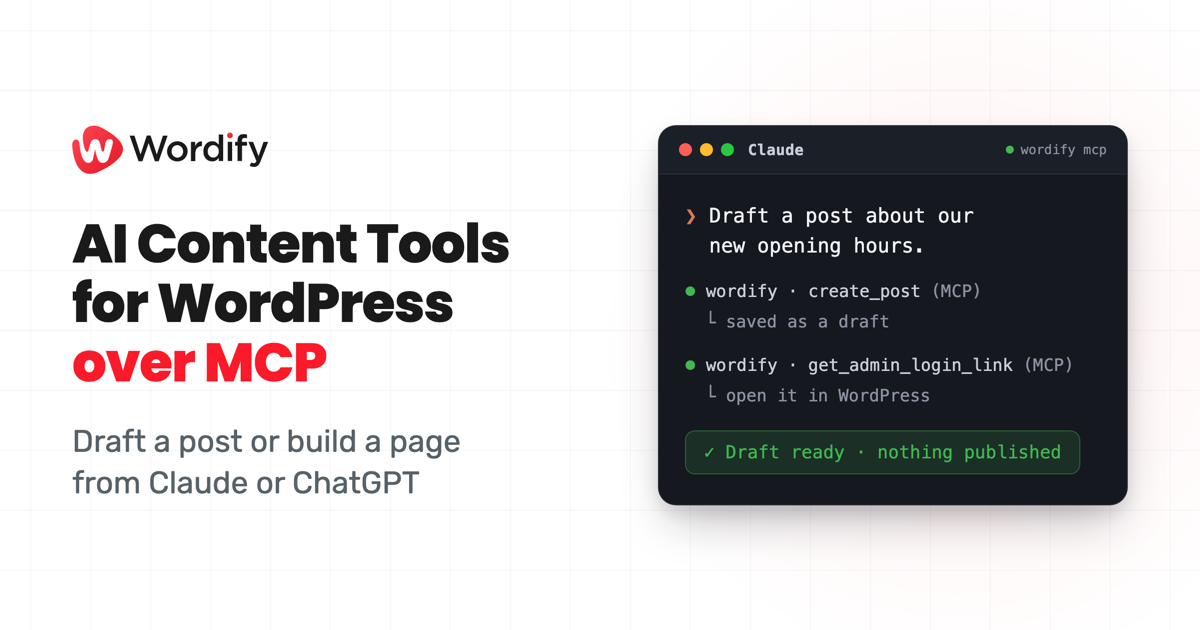
Our initial MCP launch gave you the ability to manage your hosting from your AI assistant: check PHP versions across your sites, spin up a staging site, clear a cache, take a backup before you touch something. The feedback has been really positive, but our customers wanted more. They wanted to change their site's content and build, all from the same chat.
We're pleased to share Content Tools, an enhancement to the Wordify MCP that does exactly that. Ask Claude or ChatGPT to draft a post, rewrite a tired paragraph, or take a brand-new site from empty to live: the theme, the colours, the pages, the navigation. It all happens on your real site, in the same conversation that manages the hosting underneath it.
This isn't a new product to sign up for. The same connector has been live since June, talking to Wordify over MCP (Model Context Protocol). Content Tools adds the content to what it can already reach.
Turn the sound on for the voiceover.
For the full tour, see our page on editing WordPress with AI.
Included, not an add-on
- No extra cost. Content Tools is on every Wordify plan.
- No plugin. Nothing to install on your sites, because we're the host.
- No API keys, no config files. You connect Claude or ChatGPT once, in a click.
- Every site on your team. Not one site at a time, and not one connection per site.
That last one is the part other AI connectors can't match. They're plugins: install per site, authenticate per site, and they only ever see WordPress. Ours is the host, so it reaches your whole fleet, and it can move between the hosting and the content in a single request.
What you can ask it to do
- Write. Draft a post, edit an existing one, fix a heading, tidy an excerpt, or move something to the trash.
- Build. Create a whole page in Gutenberg blocks or hand-written HTML, and pick a page template from your active theme. The markup renders exactly as it was written.
- Shape the site. Install a theme from the WordPress.org directory and switch to it. On a block theme, set the site-wide colours and typography, edit templates, and wire up the navigation menu.
- Edit precisely. Find and replace inside a single post or page, with every match shown in context before anything is written.
- Undo. Restore a previous revision if an edit didn't land the way you wanted.
- Review. Get a one-click login to open the work in WordPress and check it yourself.
Put those together and a new site can go from provisioned to live without leaving the chat: create the site, install a theme, set the colours, build the pages, wire the menu, then one-click in to see it. It writes words and markup, so images still come from your media library.
Try these first
Once it's on, these all work as written:
"List every post still sitting in draft on my main site."
"Read my About page and tighten the second paragraph. Keep the headings."
"Draft a post announcing our new opening hours. Leave it as a draft."
"Build a landing page for the spring promo using the theme's full-width template."
"Replace every mention of 'Sydney' with 'Melbourne' on the About page."
"Move the Blog link from the footer menu up into the header menu."
"Rebuild my Elementor About page as native blocks, on a new draft page so I can compare."
"Put the pricing page back to yesterday's version."
Drafts by default
New posts are saved as drafts unless you ask your assistant to publish. Publishing is never implicit.
Every edit creates a WordPress revision, so there's always a way back. Deletes go to the trash, not away for good.
How to turn it on
Content Tools stays off until you switch it on.
- In Console, go to Integrations, then AI Connectors.
- Find the Content Tools card.
- Flip the toggle and confirm.
Only a Wordify team Owner or Team Admin can enable it. Everyone else sees the card with a prompt to ask an admin. If you've already connected Claude or ChatGPT, you don't need to set the connection up again. You do need to restart your AI client once, though: it holds on to the list of tools it had when it connected, and the new ones won't show up until it asks again. Turning the connector off and on in settings isn't enough.
Available now, on every plan, for every team. The AI feature page has the full rundown of everything the connector can do, hosting and content together. If you're weighing this up against the other options, we've written a guide to the best AI tools for WordPress that covers the plugins and connectors worth knowing about. Our support team is there 24/7 if you get stuck, and new customers are covered by a 100% money-back guarantee in the first month.
One more thing, if you're in Claude Code
Anthropic shipped a /design research preview on 17 August that gives you editable artboards inside Claude Code, and the announcement ends with "then have Claude implement it".
For a WordPress site, that now means the design lands on your actual site. Draw it, then ask Claude to build the page. No export, no copy and paste, no plugin in between.